


Memory cards can be overwritten, lost, stolen, or in the worst case scenario fail even when best practices for card health are taken. External SSDs get dropped. Laptops get stolen from coffee shops during editing sessions.
The risk isn’t dramatic. It’s quiet. It looks like a drive that won’t mount on a Tuesday morning. It looks like a card that reads empty after a three-day shoot. It looks like a folder that simply isn’t there anymore after a system crash.
What makes this risk worse for creators is the irreplaceability of the content. A corrupted video project like a wedding, a commercial shoot, a documentary interview has nothing to fall back on if the files are gone. The work itself is the asset.
The 3-2-1 rule exists because no single storage medium is reliable enough to trust alone. When you hold 3 copies across 2 media types with 1 offsite, a single point of failure, any single point of failure, leaves you with two other complete copies. That’s what a real redundant storage strategy looks like in practice.
How to Back Up Video Files: A Four-Layer Architecture
The 3-2-1 rule describes what to have. This section describes where each layer lives and what role it plays. Think of it as four distinct stations in a creator’s data flow.
Layer 1 – Active Storage (Working Drives)
This is where your current projects live. Fast access, high capacity, optimized for read/write performance during active editing. NVMe SSDs or fast external SSDs are the standard here.
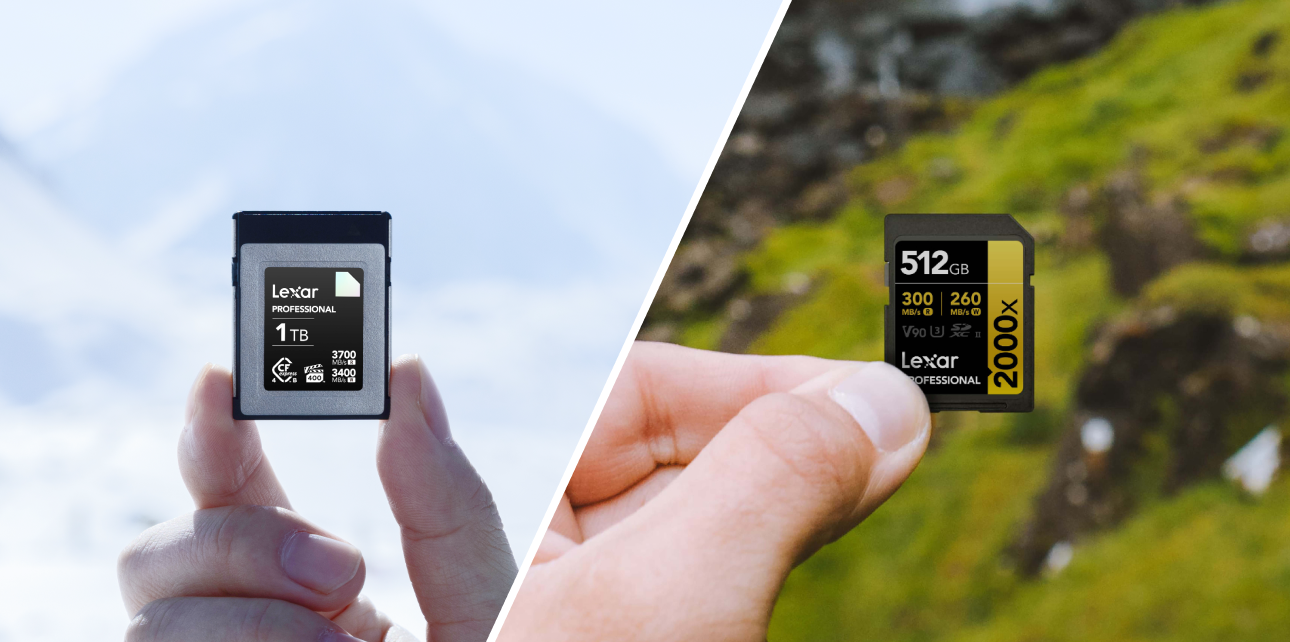
Lexar® Professional CFexpress™ Cards also play a role at this layer for field work. Cards rated V30 with up to 205MB/s read and 150MB/s write (128GB-1TB) serve as the first capture point – the origin of every file. Whatever protection system you build downstream, it starts here. The card is Copy 1.
Layer 2 – Working Backup (Local Redundancy)
This is a second local copy, ideally on a different physical drive than your primary working storage. An external hard drive or a secondary SSD connected to your editing machine works well here. The goal is immediate recovery if your working drive fails mid-project – no waiting for a cloud download.
The workflow looks like this:
- Offload footage from the card to the working drive immediately after a shoot
- Before formatting the card, confirm the transfer is complete and files are playable
- Run a backup sync to the secondary local drive
- Only then reformat the card for the next shoot
Never format the card until you have two confirmed copies on two separate drives. This single habit prevents most catastrophic data loss situations.
Layer 3 – Archive Backup (Long-Term Local Storage)
Completed projects need a home that isn’t your active working environment. High-capacity external hard drives or network attached storage (NAS) systems serve this role well. This is where finished projects, raw footage archives, and project files live for long-term reference.
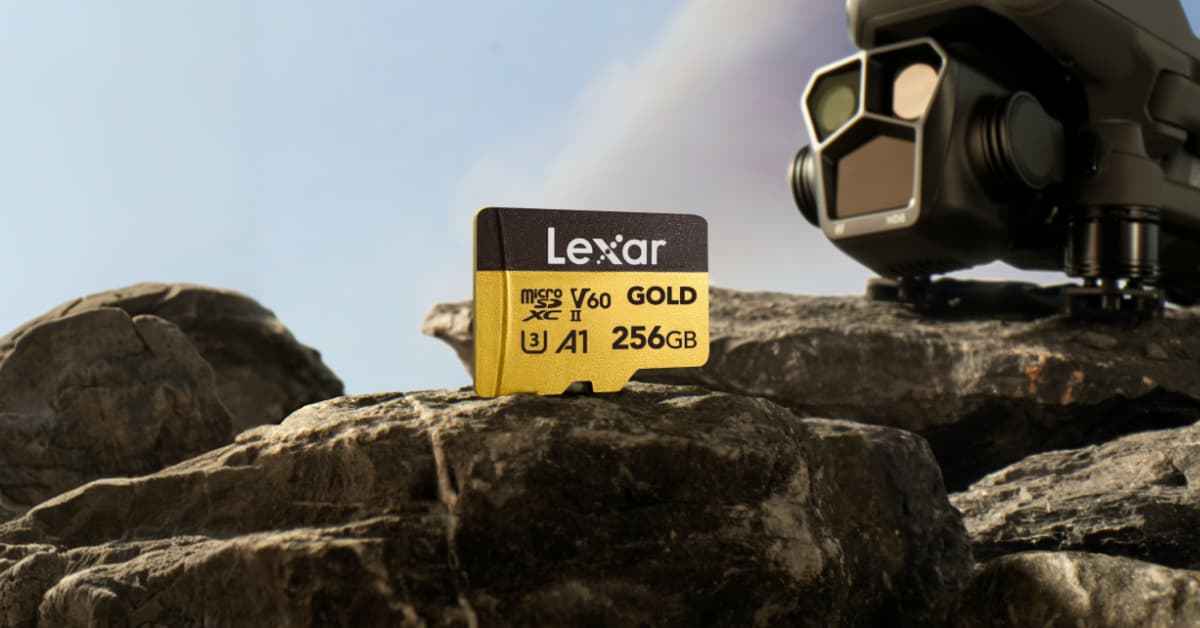
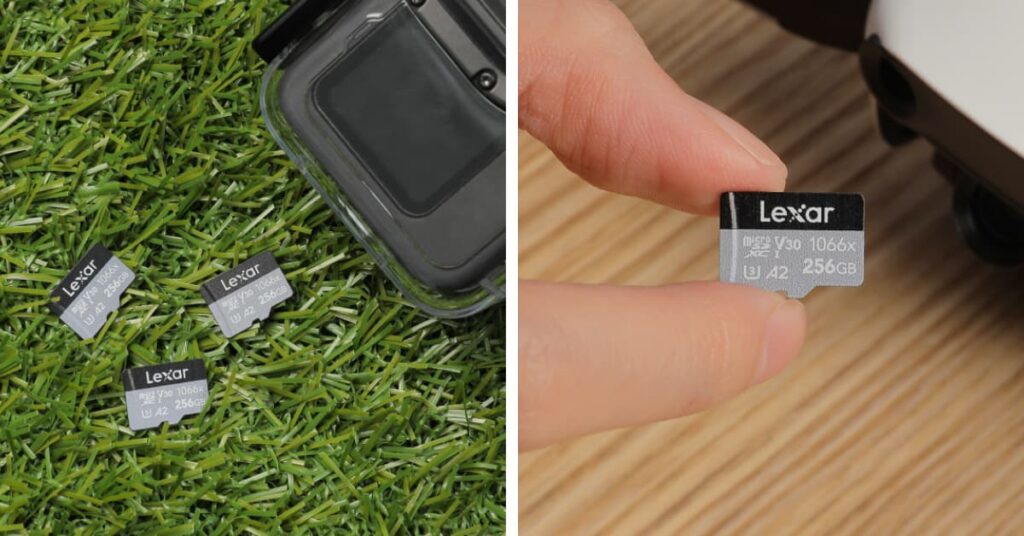
The Lexar® Professional GOLD microSDXC™ UHS-II Card also earns a place here as a portable archive medium for photographers and field videographers – rated V60, A1, with up to 280MB/s read and 180MB/s write speeds. Cards in labeled, organized cases are a lightweight, durable archive format that travels well and doesn’t require power to maintain.
The archive layer is Copy 2. It’s the second media type. And it’s what the 3-2-1 framework calls your second distinct storage format.
Layer 4 – Cloud Backup (Offsite Protection)
This is Copy 3, and it’s the one that protects against physical events: fire, flood, theft, or any disaster that could affect everything in a single location. Cloud storage services built for large media files are well-suited for this role.
Cloud backup isn’t meant to be fast. It’s meant to be there when everything else isn’t. Set up automated overnight sync to your cloud destination and let it run in the background. Your responsibility is making sure the local files are organized and the sync schedule is active.
Your 3-2-1 Creator Workflow: Visualized
Here’s how the full system flows from capture to archive:
CAPTURE
└── Memory Card (Copy 1 – Active)
│
▼
OFFLOAD TO WORKING DRIVE
└── Internal/External SSD (Copy 1 – Working)
│
├── Sync to Secondary Local Drive (Copy 2 – Working Backup)
│
└── Automated Cloud Sync (Copy 3 – Offsite)
│
▼
PROJECT COMPLETE
│
└── Move to Archive Drive/NAS (Copy 2 – Archive)
│
└── Cloud Copy Retained (Copy 3 – Offsite Archive)
At any given point during production, three copies exist. After archiving, three copies still exist. The offsite copy never moves. The local copies rotate between active and archive states. Nothing is ever down to one.
RAID As Redundancy
RAID is a redundancy tool for uptime, not necessarily a data protection tool. It belongs in the active storage layer as a way to keep working if one drive fails, but it doesn’t replace a separate backup copy. You still need the three-copy structure around it.
RAID 1 mirrors data across two drives, which means if you accidentally delete a file, both drives delete it simultaneously. If the RAID controller fails, both drives may become inaccessible at once.
For creators who want similar redundancy without the cost, a two-drive external setup with regular sync achieves comparable protection. A NAS device with two mirrored drives adds convenience. But neither replaces the offsite copy.
Backup Verification: The Step Most Creators Skip
Having a backup isn’t the same as having a working backup. Files can transfer with errors. Drives can fail silently. Cloud sync can miss folders due to naming conflicts or permission issues. A backup you’ve never tested is an assumption, not a safety net.
Build these verification habits into your workflow:
- After every offload: Spot-check transferred files by opening and scrubbing through a sample of clips before formatting the source card
- Weekly: Confirm your automated backup software is running and reporting successful syncs – don’t just assume it’s working
- Monthly: Restore a random file from your cloud backup to confirm the recovery process works and the files aren’t corrupted
- Quarterly: Audit your archive drives – connect them, verify the folder structure is intact, and check drive health via S.M.A.R.T. diagnostics
- Annually: Replace any spinning hard drives that are approaching three to four years of continuous use, regardless of reported health status
The verification protocol sounds like extra work. It is. It’s also the difference between a backup system that works and one that gives you false confidence until the moment you actually need it.
Recovery Scenario Planning
A backup system is only as good as how quickly you can use it when something goes wrong. Think through three failure scenarios before they happen:
Scenario 1 – Working drive fails mid-project. You have the working backup copy on the secondary local drive. Reconnect, repoint the project file to the new location, resume work. Recovery time: under 30 minutes.
Scenario 2 – Local storage location is compromised (theft, fire, flood). You have the cloud copy. Download priority files first, restore the rest in order of urgency. Recovery time: hours to days depending on file size and connection speed – which is why the cloud copy matters most for high-value, irreplaceable work.
Scenario 3 – Accidental file deletion or corruption. Check the working backup first. If the corruption is recent and both local copies are affected, restore from cloud. The cloud copy lags behind by up to 24 hours on an overnight sync schedule, so the most recent day’s work may need to be reconstructed – this is an argument for daily sync rather than weekly.
Planning these scenarios before they occur means you’re making decisions with a clear head, not under the stress of an active crisis.
What Happens If You Keep Delaying This
Here’s what we know about creators who haven’t built this system yet: they’re aware of the risk. They’ve had near-misses that reminded them to get to it. Then a deadline came, a project landed, and the backup workflow got pushed again.
Every shoot you complete without a verified three-copy system is a bet. Most of the time, the bet pays off. But the odds work against you with every passing month, every additional drive that ages, every card that cycles through another hundred writes.
The footage you’re shooting today deserves better than a bet. Build the system once. Run it consistently. And the next time a drive fails, you’ll already know exactly where your files are.
Frequently Asked Questions
What is the 3-2-1 backup rule for video files?
The 3-2-1 rule means keeping 3 copies of your files, on 2 different types of storage media, with 1 copy stored offsite or in the cloud. It’s the foundational standard for any video file backup system because it covers single-point failures across hardware, location, and media type. If any one copy fails, two others remain intact.
How do I protect creative files from data loss?
To protect creative files reliably, implement a layered backup workflow: keep the original card footage until two copies exist on separate drives, maintain a local working backup on a secondary drive, archive completed projects to a dedicated storage device, and sync everything to cloud storage for offsite protection. Verify each layer regularly; a backup you haven’t tested isn’t reliable.
Is RAID a good backup strategy for creators?
No. RAID provides redundancy for uptime (it keeps a system running if one drive fails) but it doesn’t protect against accidental deletion, ransomware, or physical loss of the location. RAID should be one component of a multi-layer strategy, not a substitute for separate backup copies. Always maintain at least one offsite copy independent of any RAID configuration.
How often should I test my backup system?
Spot-check file transfers after every offload, confirm automated sync is active weekly, do a test restore from cloud monthly, audit archive drive health quarterly, and replace aging hard drives annually. The most important habit is the post-offload spot-check; confirming files are intact before formatting a source card prevents the most common point of loss.
What storage media should I use for a creator backup archive?
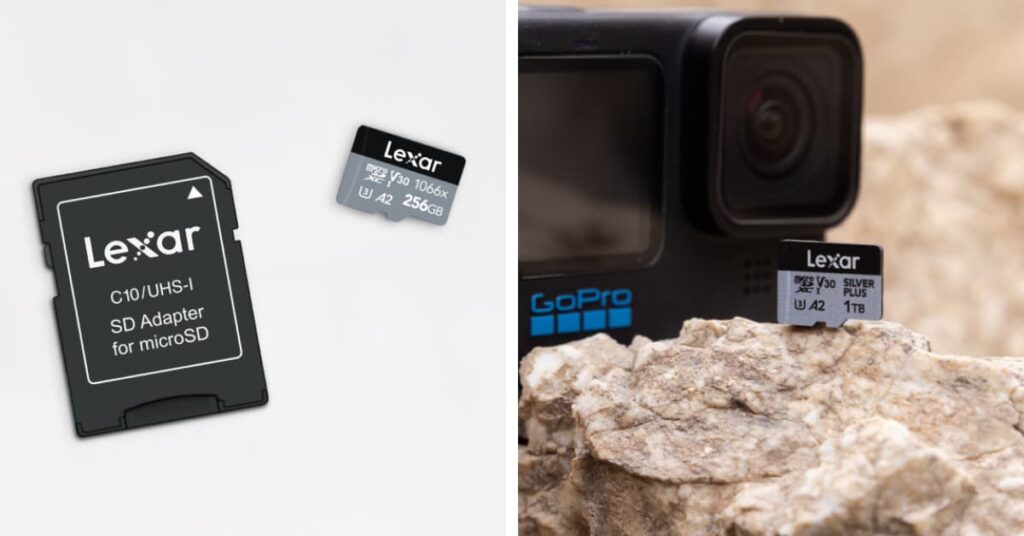
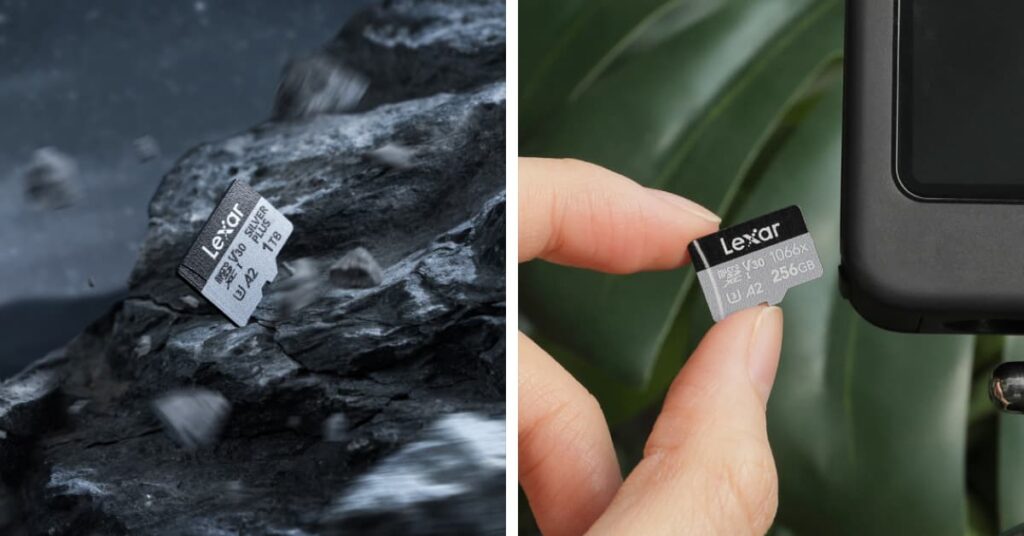
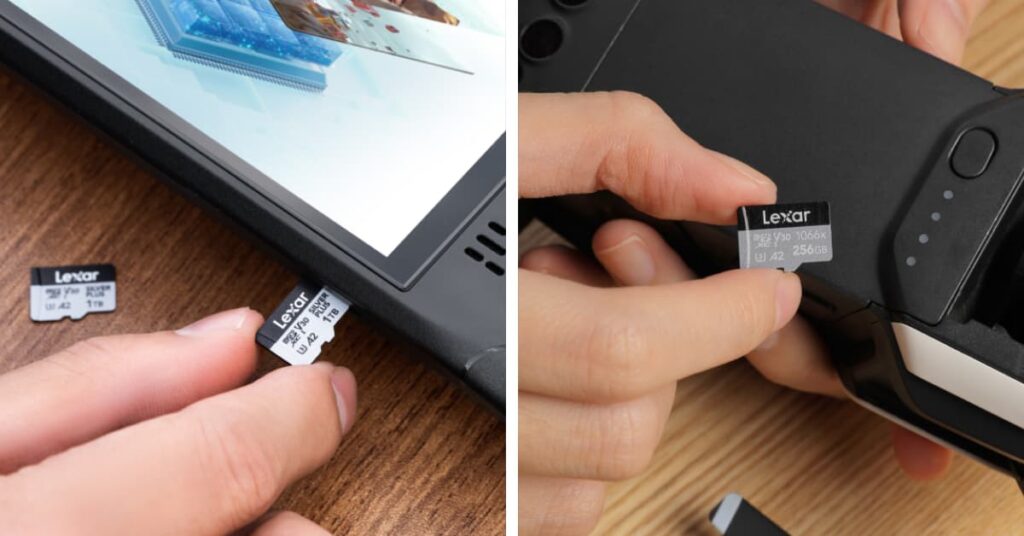
For long-term archive storage, external hard drives and NAS devices are the most cost-effective options at high capacities. For portable archive use in the field, high-capacity microSD cards like the Lexar® Professional SILVER PLUS microSDXC™ UHS-I Card (up to 1TB, V30, water and shockproof) offer a durable, lightweight format. Always maintain the offsite cloud copy regardless of which physical archive media you choose.