


Professional photographers typically capture 50,000+ images annually. Videographers working in 4K generate multiple terabytes per month. Without systematic file organization paired with storage solutions fast enough to handle these workflows, even talented creators spend more time managing files than making content.
Fast storage technology has transformed how we handle this challenge. Modern SSDs deliver read speeds exceeding 2000MB/s, turning tasks that once required coffee breaks into seconds-long operations. Combined with disciplined naming conventions and folder structures, these performance gains compound into hours saved every week.
When clients can’t get deliverables because you can’t locate edited versions, or when you accidentally send outdated files because your version control is chaotic, trust erodes quickly.
Data loss represents another critical risk. Without clear systems, files get accidentally deleted, overwritten, or abandoned on failing drives. Storage costs balloon unnecessarily when organization breaks down. Duplicate files proliferate when creators can’t quickly determine whether they already have an asset.
Fast storage amplifies these impacts. If your organizational system is sound but your drives are slow, you still lose time waiting for transfers, imports, and exports. The combination of systematic organization with high-performance storage creates multiplication effects, each element enhancing the value of the other.
Let’s review a few helpful practices to keep any workflow running smoothly.
The Foundation: Naming Conventions That Actually Work
Consistent file naming stands as the single most impactful organizational decision you’ll make. The key principles: consistency above all, readability for humans, and compatibility with both Mac and Windows systems.
Let’s start with the date in YYYYMMDD format. This puts files in chronological order automatically when sorted by name. Following the date, add identifiable information like client names or project descriptors, then include a sequence number at the end.
A photographer’s naming convention might look like: 20250304-SmithWedding-Ceremony-0001.CR3. A videographer working with multiple cameras could use: 20250304-CorporateInterview-CamA-0043.mp4. The pattern remains consistent, the information is immediately clear, and automated sorting keeps everything chronological.
Your company initials can be included if you frequently share files with clients: 20250304-MGP-SmithWedding-0001. This prevents confusion when files get mixed with work from other creatives. For video projects with multiple versions, add version indicators: 20250304-CommercialAd-V03-Final.mov.
Consider date stamps for versions instead of ambiguous “final” language that often gets followed by “FinalFinalActual”: 20250304-CommercialAd-Edit-0312.mov clearly indicates the March 12th edit. This eliminates confusion about which “final” file is actually final.
Avoid special characters that cause problems across platforms. Windows restricts the use of characters like colons, slashes, and question marks. Use underscores or hyphens as separators instead. Keep total filename length under 31 characters when possible for legacy system compatibility.
Sequence numbers need enough digits to accommodate your typical shoot volume. If you routinely capture 200 images per session, use four digits (0001-9999). The extra zeros at the beginning ensure proper sorting; otherwise “file10.jpg” appears before “file2.jpg” alphabetically.
Implement these conventions at import, not after the fact. Software like Adobe Lightroom, Photo Mechanic, and Capture One all offer automated renaming during import. Create presets that follow your naming standard, and every file gets properly named from the moment it hits your system.
Folder Structures That Scale With Your Business
Start with a year as your top-level organization. Create a folder for each calendar year: 2023, 2024, 2025. Inside each year, break down by month using numeric prefixes: 01-January, 02-February. This two-tier structure immediately narrows search parameters.
Within monthly folders, individual project folders carry the same date-based naming: 20250415-JohnsonFamily-Portraits. Everything related to that specific job lives inside: RAW files, edited JPEGs, client selections, invoices, and correspondence. One project, one folder, complete containment.
Separate RAW and edited files into subfolders within each project. A typical structure includes:
- RAW/ – Original unedited files
- Selects/ – Culled choices
- Edits/ – Processed versions
- Exports/ – Client-ready deliverables
Many creators maintain a Working/ folder on their fastest storage with ongoing projects, then move completed work to Archive/ on slower, higher-capacity drives. This keeps your working drive focused and fast. For videographers, add camera-specific subfolders when shooting multi-camera projects: A-Cam/, B-Cam/, Drone/. During editing, you’re grabbing clips from specific angles without sorting through combined footage.
Client-based structures work better for some workflows. If you shoot repeatedly for the same clients, organize by: Clients/SmithFamily/2025-04-15-Portraits/. This keeps all work for a specific client grouped together, valuable when they request previous work or when building long-term relationships requires reviewing past projects.
Document your system. Keep a README file in your root directory explaining your folder structure and naming conventions. When you hire assistants or collaborators, or when you return to your archive after a year away, this documentation ensures consistency continues.
Templates streamline new project creation. Set up a folder structure template with all your standard subfolders pre-created. When starting a new project, duplicate the template and rename it. Every project automatically inherits the same structure.
Fast Storage: The Workflow Multiplier
Organization provides the framework, but storage speed determines whether your workflow feels effortless or frustrating. Understanding speed requirements for different content types helps match storage solutions to actual workflow demands.
For 1080p video editing, minimum read speeds of 500MB/s provide smooth playback. 4K video demands 1000MB/s to 1500MB/s for comfortable timeline playback. Multi-camera 4K setups benefit from speeds approaching 2000MB/s. Professional videographers working in 6K or 8K face requirements exceeding 2000MB/s, sometimes reaching 3000MB/s for minimally compressed footage.
Photographers working with high-resolution RAW files benefit from fast storage differently. Importing 2,000 45-megapixel RAW files from a wedding creates sustained write operations where speed matters immensely. A transfer that takes 45 minutes on a traditional hard drive completes in under 10 minutes on an NVMe SSD running at 2000MB/s.
The strategy most professionals adopt: tiered storage. Active projects live on the fastest drives, either internal NVMe SSDs or high-performance external SSDs. Archive storage uses higher-capacity, slower, and more economical options since you’re accessing completed projects infrequently.
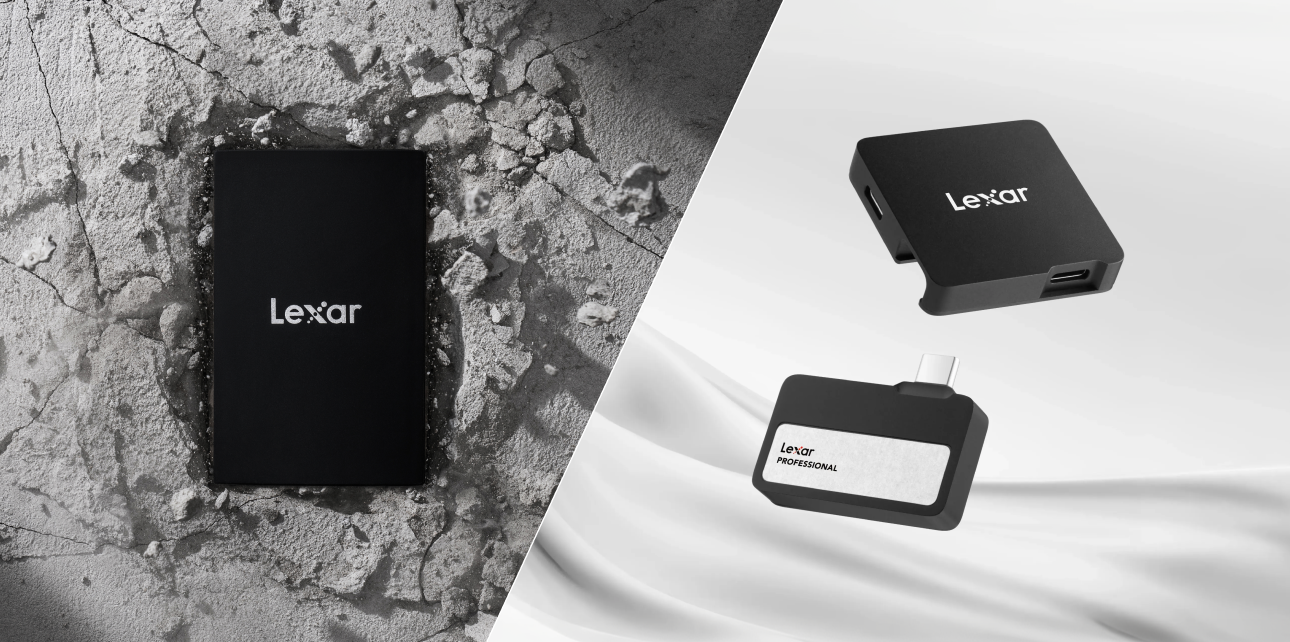
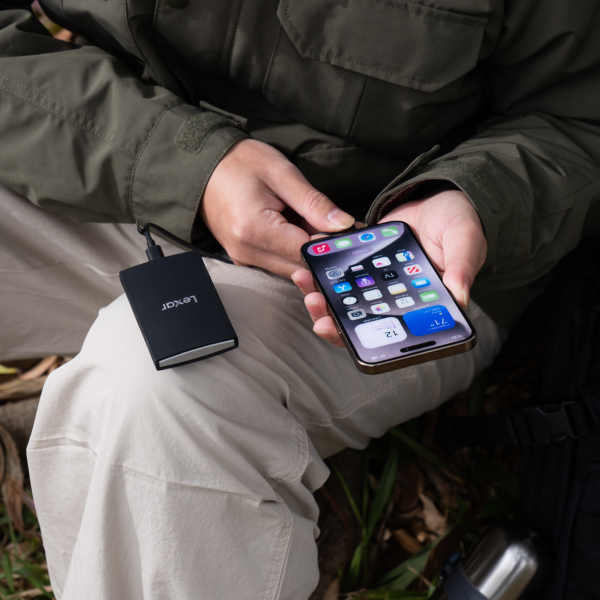
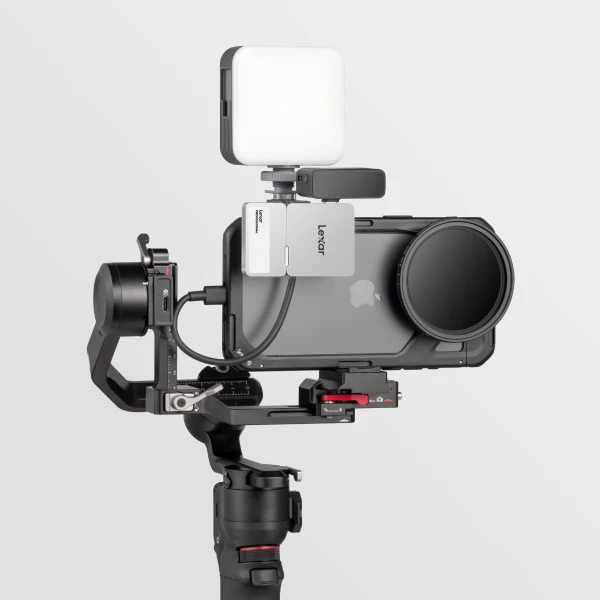
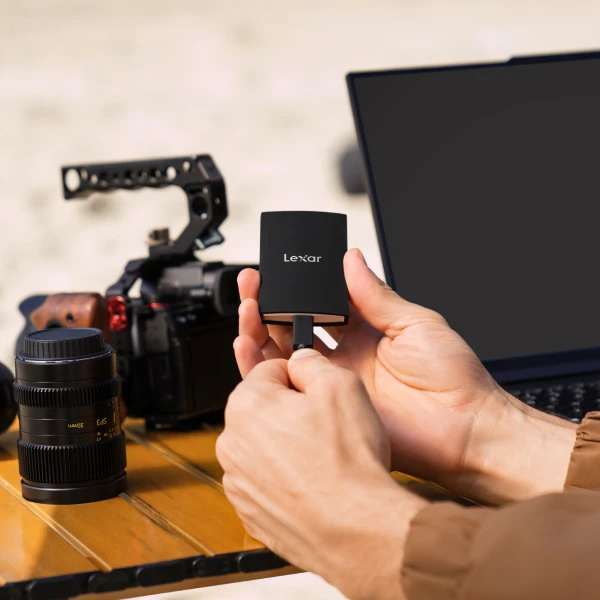
External SSDs deserve special attention for content creators. The Lexar® ES5 Magnetic Portable SSD delivers 2000MB/s read and write speeds, matching internal NVMe performance in a portable package. For 4K editors working across multiple locations or systems, this eliminates the bottleneck of slow external drives.
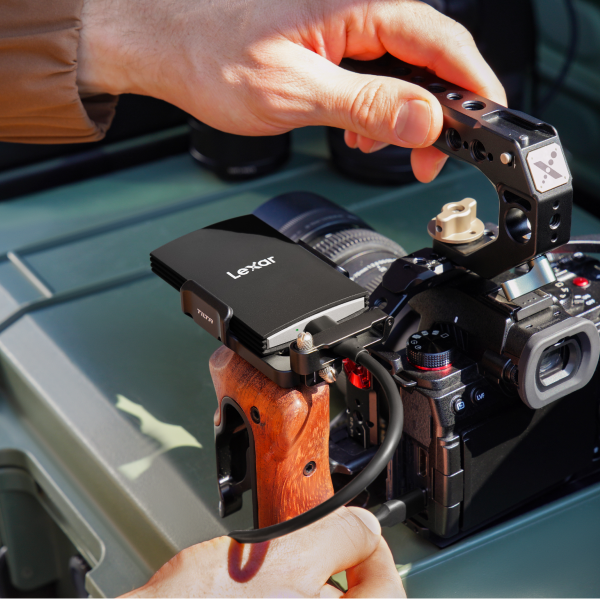
Durability matters equally with speed. The Lexar® ARMOR 700 Portable SSD combines 2100MB/s read speeds with IP66 water and dust resistance and 3-meter drop protection. For ultra-portability, the Lexar® Professional Go Portable SSD weighs just 13 grams while delivering 1050MB/s read and 1000MB/s write speeds.
Real-world impact clarifies these speed differences. Importing a 128GB memory card takes about 42 minutes at USB 2.0 speeds (60MB/s). The same transfer completes in 8 minutes with USB 3.0 (500MB/s), and in just 2 minutes using a high-speed external SSD at 2000MB/s. That 40-minute time savings repeats every shoot, compounding into hours weekly.
Preview generation in photo editing software shows similar patterns. Generating full-resolution previews for 1,000 RAW images might take 25 minutes when files live on a mechanical hard drive. Move those same files to a fast SSD, and preview generation completes in 8 to 10 minutes. Every subsequent edit, adjustment, and export operation benefits from these speed improvements.
For video editors, timeline playback smoothness depends entirely on storage speed. Scrubbing through 4K footage on a mechanical drive results in stuttering and dropped frames. The same timeline plays flawlessly from an NVMe SSD. This difference affects creative decision-making; when you can’t smoothly preview your edits, you miss timing issues and pacing problems that only appear during fluid playback.
Multi-camera editing especially demands high-performance storage. A 4-camera interview setup with all angles in 4K means your editing system must stream four simultaneous video files. At 1.5GB per minute of 4K footage, that’s 6GB of data flowing per minute of timeline playback. Only high-speed SSDs maintain this throughput without stuttering.
The 3-2-1 Backup Rule: Protecting Your Work
Photographer Peter Krogh introduced the 3-2-1 backup strategy in his 2009 book “The DAM Book.” The principle: maintain three copies of your data, store them on two different types of media, and keep one copy offsite.
Three copies means your original working files plus two backups. Two different media types adds protection against format-specific failures – if you’re backing up to multiple external SSDs, diversify to SSD plus cloud storage or SSD plus hard drive. One offsite copy protects against location-specific disasters like fire, flood, or theft.
Implementation with fast storage: Your working copy lives on a high-speed internal NVMe SSD or fast external SSD. First backup goes to a second external SSD, preferably automated nightly. Second backup uploads to cloud storage or gets physically transported offsite weekly.
Automated backups remove human error. Software like Carbon Copy Cloner, ChronoSync, or Time Machine can schedule regular backups that run without intervention. Manual backup strategies fail eventually because we get busy or forget.
Common mistakes undermine otherwise solid strategies. Some creators keep all backup drives in the same bag as their laptop, negating offsite protection. Others backup to RAID arrays thinking the redundancy equals backup, but RAID protects against drive failure, not accidental deletion or corruption.
A few rely solely on cloud backup without verifying uploads completed successfully, discovering during emergency recovery that files never synced. For high-volume creators shooting hundreds of gigabytes weekly, cloud backup bandwidth becomes the constraint. Uploading 500GB takes days on typical home internet connections.
Consider a hybrid approach: Immediate local backups to fast external SSDs provide instant redundancy, then queue large projects for cloud upload overnight. This ensures local protection immediately while asynchronous cloud backup catches up. Many professionals use 3-2-1-1, adding a fourth copy on air-gapped drives that remain disconnected except during updates. This extra layer protects against ransomware.
Verification testing matters more than most creators realize. Actually test your backups periodically. Download files from cloud storage and confirm they open correctly. Restore a complete project from your backup drive and verify nothing is missing. These verification tests catch silent backup failures before emergencies occur.

Metadata: Making Files Findable Years Later
Metadata is information embedded directly into files: keywords, descriptions, copyright notices, location data. Unlike external databases, embedded metadata travels with your assets regardless of how they’re renamed or moved.
Keywords represent the most powerful metadata element. Tag images with relevant descriptors: location names, subject types, events, emotions. A wedding photograph might carry keywords like “outdoor ceremony,” “beach wedding,” “sunset lighting.” Years later, searching for “beach sunset wedding” instantly surfaces relevant images regardless of folder location.
Copyright information embedded as metadata protects your work legally. Include your name, copyright year, usage rights, and contact information. Professional software like Adobe Lightroom, Bridge, and Photo Mechanic all write IPTC-compliant metadata that remains readable across applications and platforms.
Lightroom excels at batch metadata operations. Select 500 images from a single wedding and apply shared metadata instantly: event name, date, location. Then refine with specific keywords for different groups. Template presets accelerate repetitive metadata entry for common shoot types.
GPS data embedded by modern cameras creates location-searchable archives. Years later, you can query “show me all images taken within 5 miles of Central Park” and instantly see every relevant photo. For travel photographers and location scouts, geographic metadata becomes invaluable for rediscovering compositions.
Facial recognition in modern photo management software leverages metadata to identify individuals across thousands of images. Tag a face once, and the software suggests that person in other photos. For event photographers managing large groups, this automation saves hours of manual organization.
The investment in metadata pays dividends over years. That wedding you shot in 2020? The client calls requesting “that photo from the beach ceremony when the flower girl was laughing.” Without metadata, you’re visually scanning hundreds of images. With proper tagging, you search “beach ceremony flower girl” and find the exact moment in seconds.

Best Practices and Ongoing Maintenance
Systems require discipline to maintain effectiveness. These practices separate professionals who stay organized from those who gradually slide back into chaos:
- Format memory cards in-camera rather than on computers. Cameras create specific file system structures during formatting that optimize compatibility and follow the DCF (Design Rule for Camera File System) standard.
- Immediate backup after shoots establishes the most critical habit. Before editing, before anything else, copy files to at least one backup location. Wedding photographers particularly can’t afford to lose ceremony footage waiting until morning.
- Regular archive reviews keep storage systems healthy. Quarterly, examine older projects, identify duplicates, and confirm backups still exist and files open correctly. Detect corrupted files or failing drives early.
- Monitor drive health using diagnostic tools. SSDs report their remaining lifespan through SMART data. Software like manufacturers’ tools surface warnings before drives fail. Proactive replacement prevents data loss.
- Capacity planning prevents emergencies. When working drives exceed 80% capacity, performance degrades and you risk running out of space mid-project. Order additional storage when you hit 70% capacity.
- Version control for active projects saves you from yourself. During editing, maintain clear version separation: working drafts in one folder, client review versions in another, final deliverables in a third.
Standardize import routines so they become automatic. Same renaming pattern, same metadata template, same backup sequence, every time. When the process is identical, you build muscle memory that reduces errors. Annual system reviews evaluate whether your framework still serves your needs as your business evolves.


Building Systems That Compound Over Time
File management for content creators doesn’t require perfection from day one. Start with one element: consistent naming conventions. Add folder structure next week. Implement the 3-2-1 backup rule the following month. Each improvement builds on previous foundations.
The time you invest organizing files returns multiplied across every future project. That hour spent developing naming conventions saves five minutes per shoot forever. Those five minutes per shoot become 40 hours annually at typical shooting volumes. Fast storage amplifies these gains further.
Professional-grade storage like the Lexar® ES5 Magnetic Portable SSD, ARMOR 700, or Professional Go Portable SSDs represent infrastructure investment. These tools don’t just hold files; they accelerate workflows, withstand professional use demands, and provide performance headroom for format evolution.
File management for content creators ultimately determines whether you spend your time creating or managing. Build systems that serve you, invest in storage that keeps pace with your ambition, and protect the work that defines your professional value.