


Role-based storage allocation is the organizing principle behind every reliable multi-camera system: A-cam gets high-performance cards matched to the primary format, B-cam gets balanced performance and capacity, C-cam gets capacity-focused storage for supplementary coverage and B-roll.
Every camera has a defined role, every card has a defined home, and every person on set knows which card goes where before a single frame is recorded. That clarity is what separates productions that run cleanly from ones that spend post-production untangling which angle came from which body.
This guide builds the complete system, from pre-production card assignment through physical organization, transfer station setup, batch ingestion software, and multi-camera backup strategy.
The Three-Tier Card System at a Glance
- A-cam: Highest sustained write performance. V60 or V90 for RAW and high-frame-rate. Two cards minimum per shoot day.
- B-cam: Balanced performance and capacity. V30 covers most 4K compressed work. One full-session card with a spare.
- C-cam: Maximum capacity for the budget. V30 UHS-I covers all standard B-roll formats. Fewer swaps, more coverage.
Role-Based Storage Allocation: The Foundation of Multi-Camera Organization
Every camera in a multi-camera setup has a job. Storage allocation should match that job precisely, not just in speed, but in capacity planning, labeling, and how cards move through the production workflow.
A-Camera: Primary Interview, Main Subject, Hero Shots
The A-cam holds the footage that defines the project. If anything goes wrong with A-cam footage, the production is compromised. Storage here is not the place to economize.
- Speed requirement: Highest sustained write performance your format demands. V60 or V90 for RAW and high-frame-rate formats, V30 minimum for 4K compressed.
- Capacity strategy: Two cards minimum per shoot day, never exceeding 75% capacity per card to protect sustained write performance.
- Backup protocol: A-cam cards back up first, before B or C-cam, before anything else on the drive gets touched.
- Card color/label: Assign a consistent color identifier. Red labels, red cases, red tape on the card slot. A-cam cards are never ambiguous on set.
B-Camera: Secondary Angle, Cutaways, Reaction Shots
B-cam carries important supplementary footage: the wide shot during an interview, the reaction angle, the cutaway that makes the edit work. Performance requirements are similar to A-cam, but the replacement risk is lower because A-cam covers the primary story.
- Speed requirement: Match the recording format. V30 covers most 4K compressed B-cam work.
- Capacity strategy: Balanced. Enough for a full session without swaps.
- Card color/label: Blue or yellow identifier, visually distinct from A-cam at a glance.
C-Camera: B-Roll, Wide Coverage, Environmental Shots
The C-cam captures supporting material: environmental shots, detail coverage, wide establishing footage. High sustained write performance matters less here because C-cam rarely runs long continuous recording. Capacity matters more.
- Speed requirement: V30 UHS-I covers all standard B-roll formats.
- Capacity strategy: Maximize capacity for the budget. More footage, fewer swaps.
- Card color/label: Green identifier, the third distinct color in the system.
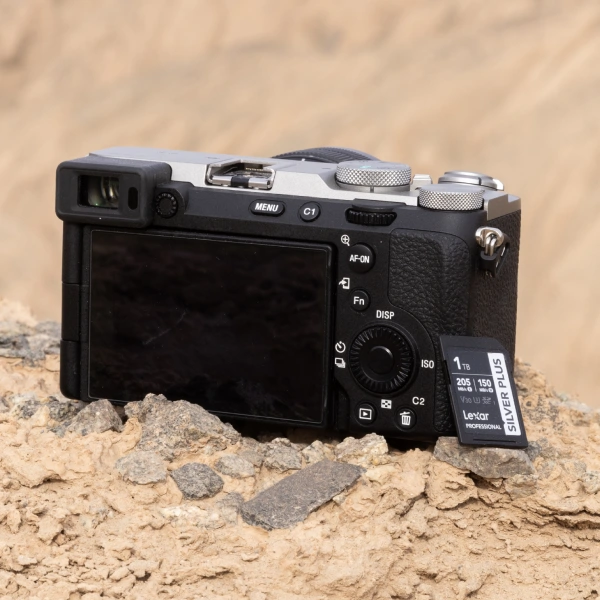
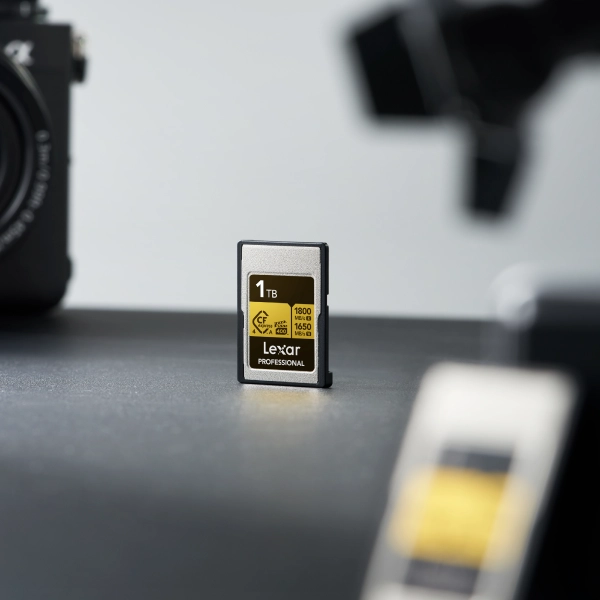
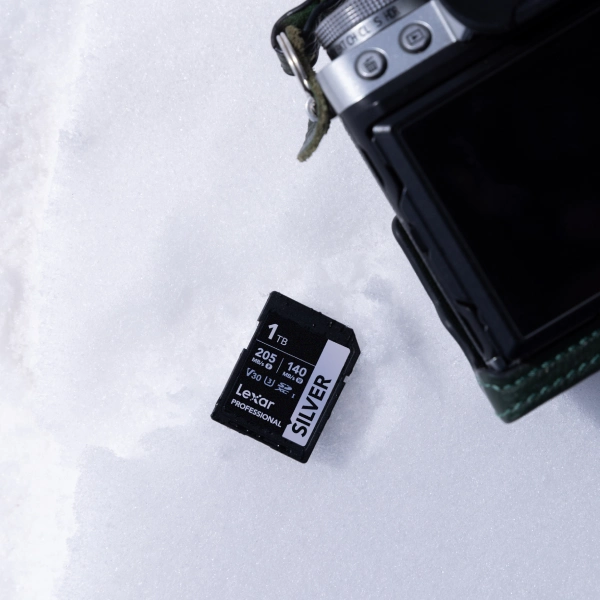
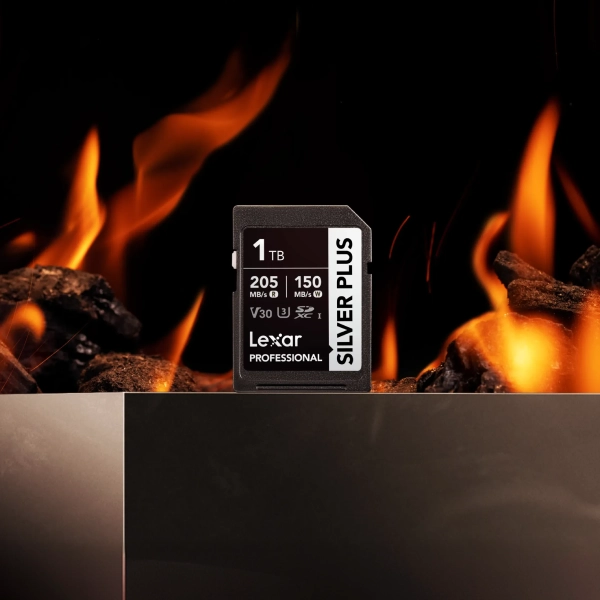
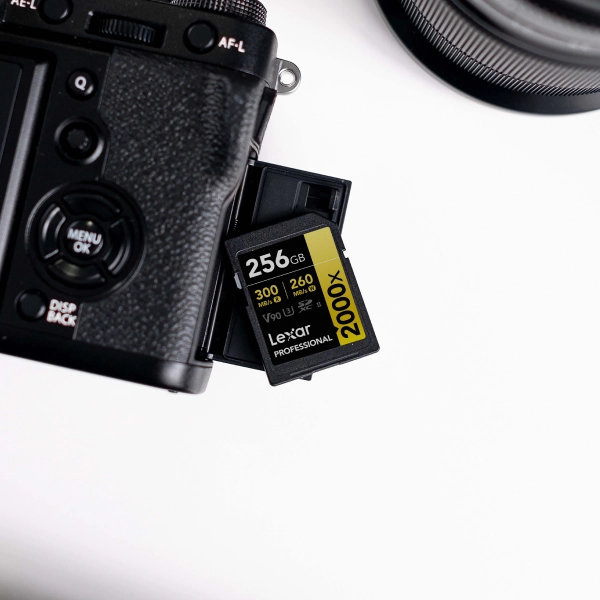
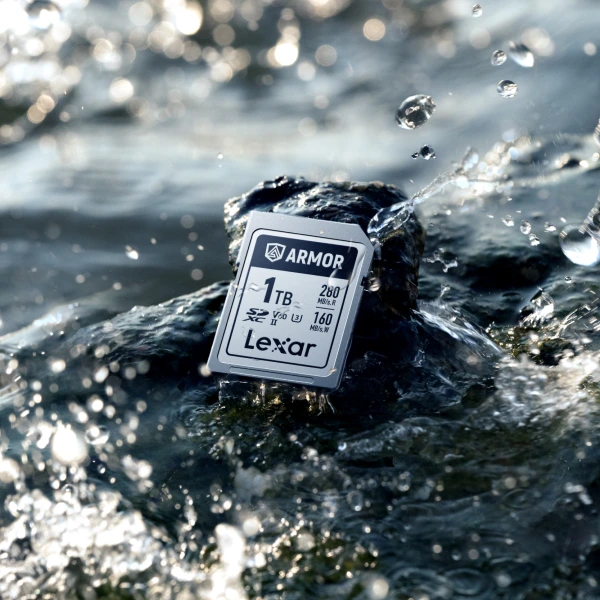
The Lexar® Professional SILVER PLUS SDXC™ UHS-I Card fits both B-cam and C-cam roles across most mirrorless and action camera setups. Its capacity range through 512GB means C-cam coverage shoots can run without mid-session swaps, and its IPX7 waterproof, shockproof, and vibration-resistant construction handles the varied positions secondary cameras occupy on set.
For B-roll work involving drones, action cameras, or any remote rig, the Lexar® Professional 1066x SDXC™ UHS-I Card SILVER Series provides reliable secondary coverage storage at a capacity-focused price point.
Physical Organization: The System You Can See and Touch
A labeling system that exists only in your head breaks the moment a second person touches the kit. Physical organization makes the workflow legible to everyone.
The Card Case System
Use a dedicated card case with separate compartments for each camera role:
- Left compartment: Unshot cards, organized by camera role with color-coded labels.
- Right compartment: Shot cards awaiting ingestion. Same color coding, moved right the moment a card leaves a body.
- Center section: Cards currently in cameras. Empty until a card comes out.
Label every card with camera role (A1, A2, B1, B2, C1, C2) and shoot date before the day starts. The left-to-right flow makes card status visible without verbal communication.
Transfer Station Physical Setup
The transfer station is a dedicated physical workspace, not a laptop balanced on a case lid. The core setup:
- A multi-slot card reader handling all formats in your kit simultaneously.
- A dedicated ingestion machine, separate from the edit workstation if possible.
- A labeled “TO INGEST” tray and a “INGESTED — VERIFY BEFORE FORMAT” tray.
- External drives labeled by date and production, pre-connected before wrap.
- Power for everything. Never ingest on battery.
The Verification Rule
The physical separation of “TO INGEST” and “INGESTED — VERIFY” trays is non-negotiable. A card that has been ingested but not verified does not get formatted. Verification — confirming files are complete and playable — happens before any card goes back into rotation.
Workflow Diagrams by Shooting Scenario
Scenario 1: Vlog + Main + B-Roll (Solo or Small Team)
Pre-Shoot
- Label cards: A1/A2 (main), B1 (vlog), C1/C2 (B-roll)
- Assign cards to bodies, verify format compatibility
- Set remaining capacity alerts where camera allows
During Shoot
- A-cam card swap at 70% capacity. A1 to shot tray, A2 in body.
- B-cam: single card, monitor capacity between setups
- C-cam: highest-capacity card, swap only if needed
Post-Shoot (Same Day)
- Shot cards to TO INGEST tray, organized by role
- Ingest A-cam first, verify, move to INGESTED tray
- Ingest B-cam, verify, INGESTED tray
- Ingest C-cam, verify, INGESTED tray
- Run backup to secondary drive
- Format cards only after backup confirmed
Scenario 2: Documentary (Multi-Day, Multiple Operators)
Pre-Production
- Card inventory sheet: each card numbered, assigned operator, assigned body
- Daily card check-out log: operator signs for cards each morning
- Dedicated PA or AC manages card movement and ingestion
Daily Workflow
- Morning: operators receive labeled card sets, confirm format/speed
- During shoot: filled cards to production coordinator immediately
- End of day: all cards in, coordinator ingests sequentially by camera role
- Each card logged: body, operator, approximate content, ingestion status
Multi-Day Protection
- Never carry all copies in the same bag between locations
- One copy stays at base; one travels with primary production gear
Scenario 3: Event Coverage (Wedding, Conference, Live)
Capacity Planning (Pre-Event)
- Calculate total shoot hours × bitrate per camera = minimum capacity
- Add 30% buffer for unexpected coverage extensions
- Pre-assign card swaps to specific event moments (ceremony start, reception start) rather than waiting for capacity alerts
Event Day Protocol
- Dedicated runner for card management if team allows
- Swap cards at natural breaks, never during critical moments
- Shot cards into sealed labeled envelopes immediately after removal
- No card formatting until all footage is verified on two drives

Capacity Planning Calculator: Multi-Camera Shoots
Before any multi-camera production, run this calculation for each body:
- Estimated shoot hours (add 25% buffer to scheduled time)
- Recording format bitrate in MB/minute (check camera specs)
- Total GB needed = shoot hours × 60 × MB/minute ÷ 1,000
- Card count = total GB ÷ card capacity × 1.3 (30% overhead)
Example for a 6-hour wedding with three cameras:
| Camera | Format | MB/min | Hours (buffered) | Total GB | Cards Needed |
|---|---|---|---|---|---|
| A-cam (mirrorless 4K/60) | 4K compressed | 900MB | 7.5 hrs | ~405GB | 2 × 256GB |
| B-cam (mirrorless 4K/30) | 4K compressed | 600MB | 7.5 hrs | ~270GB | 2 × 256GB |
| C-cam (action camera 4K) | 4K compressed | 400MB | 6 hrs | ~144GB | 1 × 256GB |
Total production capacity needed: ~820GB across five cards. Plan for six to allow one spare per A/B role.
Software Tools for Multi-Camera Ingestion
Ingesting six cards manually is where disorganization compounds. The right ingestion software handles verification, folder structure, and rename conventions automatically.
- Hedge (Mac): Purpose-built for production ingestion. Copies to multiple destinations simultaneously, generates checksums automatically, and creates verified copy reports. This is the standard for professional multi-camera ingestion.
- ShotPut Pro: Provides cross-platform production offloads with report generation and simultaneous multi-destination copy.
- DaVinci Resolve (clone media tool): Built into Resolve’s media management. Creates verified copies before any media is imported to the project, and is ideal if your edit pipeline already runs on Resolve.
- Manual with checksums: Viable for small teams on tight budgets if paired with a checksum tool (md5 or xxHash) to confirm copy integrity before formatting.
The Non-Negotiable Requirement
Checksum verification is mathematical confirmation that every bit transferred from card to drive matches exactly. Every tool above supports it. None of them are optional on a professional multi-camera production.
Backup Strategy for Multi-Camera Shoots
The 3-2-1 backup rule applies here with one added wrinkle: ingestion windows. On complex shoots, you may be ingesting morning cards while afternoon shooting is still active. Backup has to run in parallel, not sequentially.
- Copy 1: Primary production drive ingested as cards arrive, organized by camera role and time of day.
- Copy 2: Simultaneous copy to secondary drive via ingestion software’s dual-destination feature. Runs at the same time as Copy 1.
- Copy 3: End-of-day cloud sync or physical offsite copy.
- Card status: No card formatted until both local copies are verified complete.
The Pre-Shoot and Wrap Checklist
Pre-Shoot (Night Before or Morning Of)
- ☐ All cards labeled with camera role (A1, A2, B1, B2, C1, C2) and shoot date
- ☐ All cards formatted in-camera, never from a computer
- ☐ Card capacity plan calculated for each body
- ☐ Transfer station set up, drives connected and labeled, ingestion software open
- ☐ Backup drives connected and verified
- ☐ Card cases loaded: unshot left, shot right, clear center
Wrap (End of Shoot Day)
- ☐ All cards accounted for against the pre-shoot inventory
- ☐ All shot cards in the TO INGEST tray
- ☐ Ingestion run in camera-role order (A-cam first)
- ☐ Checksum verification complete for all ingested cards
- ☐ Copy 2 confirmed complete before any card is formatted
- ☐ Cloud or offsite backup sync initiated
- ☐ No card formatted until both copies are verified
- ☐ Production log updated: cards ingested, storage used, cards returned to clean rotation
Frequently Asked Questions
How do I manage memory cards across multiple cameras with different formats?
Use role-based allocation: assign cards by camera job (A-cam, B-cam, C-cam) and match speed and capacity to each role’s requirements. Label every card with its camera assignment and shoot date before the day starts. Use a card case system with separate compartments for unshot, in-camera, and shot cards. When bodies use different physical formats (microSD vs full-size SD), assign that format exclusively to a specific role and never mix cards between incompatible slots.
What is the best workflow for ingesting footage from multiple cameras?
Use dedicated ingestion software (Hedge, ShotPut Pro, or DaVinci Resolve’s clone tool) that copies to two destinations simultaneously and generates checksum verification reports. Ingest in camera-role order starting with A-cam. Move each card to a physical “INGESTED — VERIFY” tray only after the software confirms the copy is verified. Never format a card until both local copies are confirmed.
How much storage should I prepare for a multi-camera production?
Calculate: estimated shoot hours (with 25% buffer) × recording format bitrate in MB/minute × number of cameras, then add 30% overhead. For a typical 6-8 hour three-camera event shoot in 4K compressed formats, plan for 800GB-1.2TB of card capacity across all bodies, plus equivalent drive storage for at least two local copies.
Should every camera in a multi-camera setup use the same memory card?
Not necessarily. Standardizing across all bodies can mean over-investing in C-cam or under-investing in A-cam performance. Match card performance tier to camera role: highest sustained write for A-cam, balanced performance and capacity for B-cam, capacity-focused for C-cam B-roll coverage. Standardize within each role for simpler spares management and a consistent recovery workflow.
What physical organization system works best for multi-camera card management?
A dedicated card case with color-coded compartments by camera role and a left-to-right workflow: unshot on the left, shot on the right, center empty while cards are in-body. Label every card with role identifier (A1, A2, B1) and shoot date. Use separate physical “TO INGEST” and “INGESTED — VERIFY” trays at the transfer station so card status is visible at a glance without verbal communication.