



Memory cards rarely fail catastrophically. In fact, modern cards deliver reliable performance when handled correctly. Problems emerge from how photographers use them.
Small mistakes in formatting, storage, or card selection compound until data loss becomes inevitable, but these types of mistakes can be easily avoided. In this guide, we’ll break down the ten most common memory card mistakes and the correct practices that protect your work.
Mistake #1: Formatting Memory Cards on Your Computer
Formatting memory cards using your computer’s operating system seems logical. Insert the card into a reader, click “Format” in Windows or Mac, done. However, this creates incompatibilities that trigger errors when the card returns to your camera.
Cameras create specific directory structures following the Design Rule for Camera File System (DCF) specification. When you format in-camera, your camera builds this structure, creates necessary index files, and optimizes parameters for how that camera writes data. Computer operating systems have no knowledge of DCF requirements. A Windows or Mac format creates generic file systems without camera-specific structures.
The consequence shows as “Card Error” messages, inability to recognize the card, or performance degradation. Some Sony cameras maintain databases tracking image locations, but computer formatting doesn’t properly rebuild a database, causing playback errors. Canon and Nikon cameras expect specific structures that computer formatting doesn’t provide.
Best practice: Format cards in the camera where they’ll be used. With new cards, you can perform initial formatting using the SD Association’s SD Formatter tool, then format again in-camera. From that point forward, all formatting should happen in-camera. After backing up photos, format in the camera rather than deleting files on your computer.
Mistake #2: Deleting Files One by One Rather Than Formatting
The workflow seems sensible: transfer photos to your computer, delete bad shots from the card to free space, keep shooting. This pattern works initially but causes file system fragmentation that accumulates over time.
File systems maintain allocation tables tracking where each file exists. When you delete files, the system marks space as available but doesn’t remove table entries immediately. Over hundreds of deletion cycles, phantom entries accumulate. Write speeds slow down. Error probability increases. Cards that worked flawlessly for months suddenly start generating errors – the symptom of critical fragmentation.
Formatting erases the entire allocation table and creates a fresh one. Professional photographers format cards after every shoot, once images are backed up. For casual shooters, formatting monthly maintains card health. Never delete files from the card while it’s in the camera. Transfer everything to your computer, verify the transfer succeeded, then format the card in-camera.
Mistake #3: Choosing the Wrong Speed Class for Your Camera’s Needs
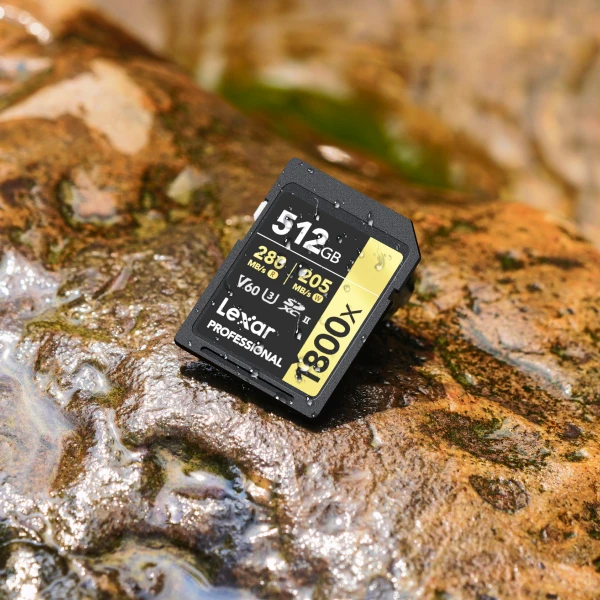
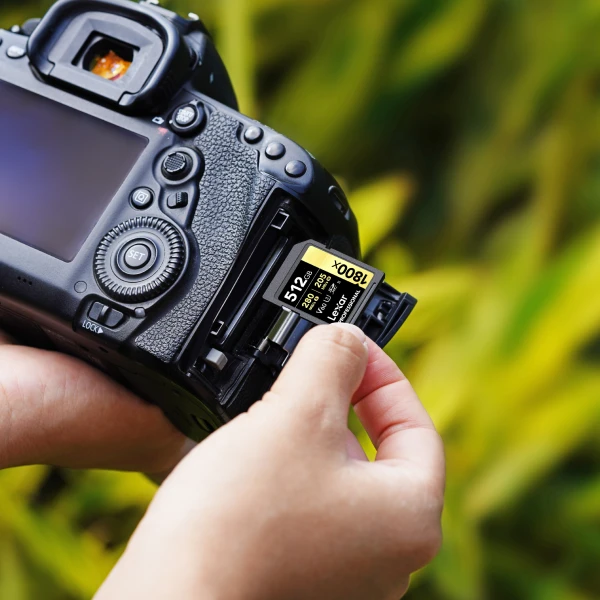
Memory card packaging displays multiple speed ratings: Class 10, U1, U3, V30, V60, V90. These specifications matter significantly, yet many photographers grab whatever’s cheapest without verifying it matches their camera’s requirements. The result is usually dropped frames in video, buffer delays in burst photography, or complete inability to access certain features.
Speed class ratings indicate minimum sustained write speeds. Class 10 guarantees 10MB/s. UHS Speed Class 1(U1) also means 10MB/s but uses the faster UHS-I interface. U3 guarantees 30MB/s. Video Speed Class ratings correspond directly: V30 means 30MB/s sustained, V60 means 60MB/s, V90 means 90MB/s. Recording 4K video at 60fps requires at least V30/U3 cards. High-bitrate 4K modes need V60. 8K video demands V90.
Burst photography faces similar constraints. Fast V60 or V90 cards maintain maximum burst rate for longer sequences. However, a given camera model has limits on the speed it can use. If your camera uses a UHS-I interface, it cannot exceed approximately 104MB/s regardless of whether you insert V30 or V90.
Check your camera’s specifications for supported interfaces and minimum speed classes. Buy cards that meet or slightly exceed requirements without paying premiums for speeds your camera cannot access.
Mistake #4: Taking Out Memory Cards While the Camera Is Still Powered On
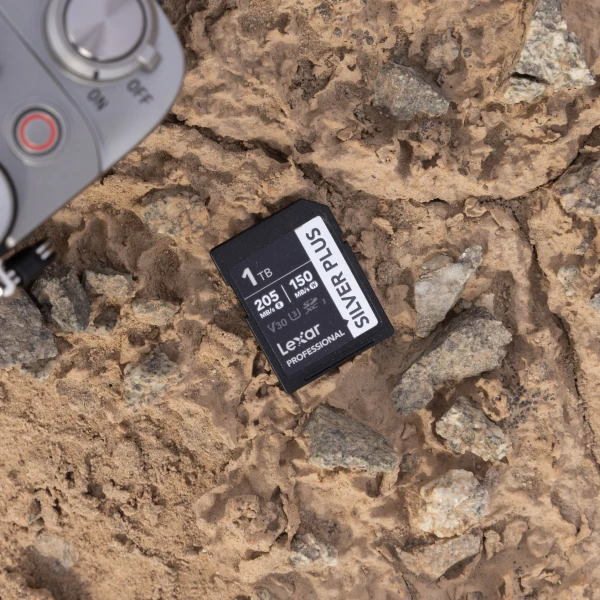
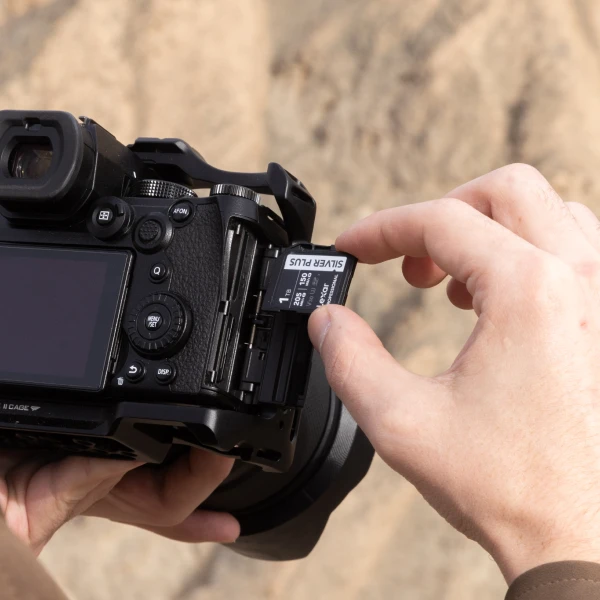
Pulling cards while power flows through the system invites disaster. File corruption happens instantly when write operations get interrupted. Cameras don’t write files instantaneously. Instead, data transfers to the card in the background. Even after the camera displays “ready,” previous files might still be writing. When you pull the card during active writing, that file’s data gets cut off mid-stream.
Modern cameras include LED indicators that blink when the card is active. This light means “writing in progress — do not remove card.” The workflow is a relatively quick process: Finish shooting, wait for blinking lights to go solid, press the power button, wait two seconds, then remove the card. Those few seconds can prevent hours spent trying to recover corrupted files.
Mistake #5: Sharing Memory Cards Between Different Cameras
Multiple cameras seem perfect for sharing memory cards. This practice introduces reliability problems that compound over time, even with cameras from the same manufacturer. Different models create different directory structures and maintain different database files. Move a card between cameras without reformatting, and database incompatibilities create conflicts.
File numbering presents another conflict. Cameras assign sequential numbers, tracking the last used number in the card’s structure. Use the same card in two cameras, and both try maintaining separate numbering schemes, creating confusion and increasing chances of overwritten files.
Solution: Dedicate specific cards to specific cameras. If you must move a card between cameras, format it in the new camera before using it. This clears the previous camera’s database and directory structure.
Mistake #6: Using Memory Cards That Exceed Camera Specifications
Older cameras have hard capacity limits. The SDHC standard supports cards from 4GB to 32GB. The SDXC standard supports 64GB and above. These represent different file systems and addressing methods. Cameras manufactured before approximately 2010-2012 often support only SDHC, meaning they cannot use SDXC cards larger than 32GB.
When you insert a 64GB SDXC card into an SDHC-only camera, it either refuses recognition or recognizes only the first 32GB, potentially creating file system corruption. Camera manuals specify maximum supported capacities. Check this spec before buying high-capacity cards. Be sure to install current firmware before using new cards — some manufacturers release firmware updates to add support for larger cards.
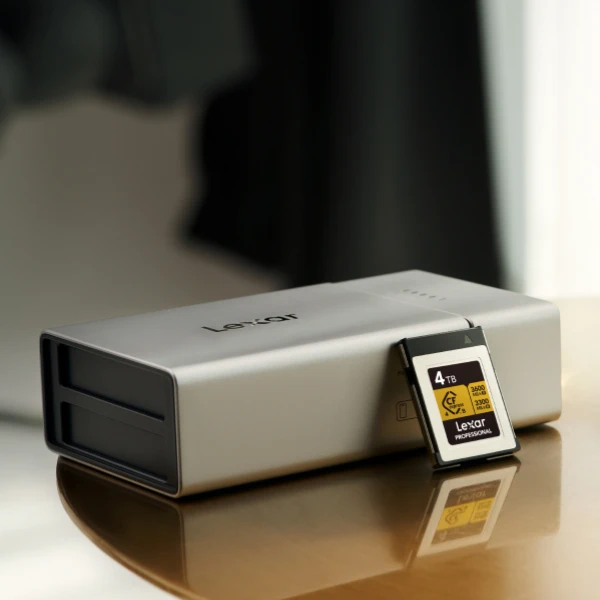
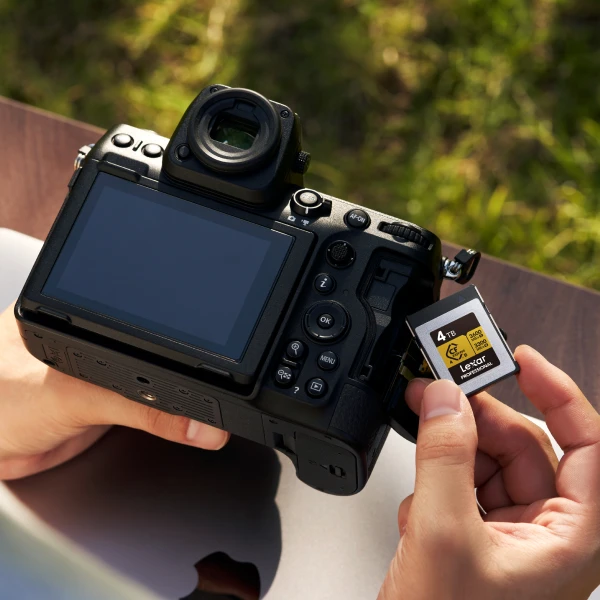
Mistake #7: Maxing Out Memory Card Storage Completely
Shooting until the camera displays “Card Full” seems efficient but degrades performance and increases errors. File systems require overhead space to operate efficiently. When cards reach 95% to 100% capacity, write speeds slow as the camera searches for scattered free space. Professional workflows involve swapping cards when they reach 80% to 85% full rather than pushing to absolute capacity.
Calculate your typical shooting volume and buy cards with 20% to 30% extra capacity. Carry multiple cards rather than relying on a single large card. When the remaining shot count drops into double digits, finish the current sequence and swap cards. This maintains optimal performance and eliminates shooting with nearly full cards.
Mistake #8: Poor Physical Handling and Storage of Memory Cards
The gold or copper contacts on card edges must maintain clean electrical connections. Oils from fingerprints create resistance slowing transfer or causing connection failures. Dust and dirt block signals entirely. Hold cards by edges, not touching contact strips. When you must touch contacts, clean them afterward with a dry microfiber cloth.
Temperature extremes damage electronic components. Leaving cards in hot cars exposes them to temperatures exceeding 140°F. Extreme cold makes components brittle, and condensation introduces moisture that corrodes contacts. Store cards in moderate temperatures. Don’t leave them in vehicles. Keep cards insulated in interior pockets when shooting in extreme conditions.
Physical shock from drops can crack internal components. While cards withstand occasional drops better than hard drives, repeated impacts cause damage that may not manifest immediately. Protective card cases prevent both shock damage and environmental exposure. Invest in hard shell cases that hold multiple cards securely.
Other cards are designed to withstand those types of handling conditions, and while they do require some planning to anticipate the need, they’re worth the time. The Lexar® ARMOR GOLD SDXC™ UHS-II Card, for example, improves durability by removing the fragile write-protect switch, uses a stainless steel construction and a ribless design to prevent breaks. It was also built to endure heavier impacts and dissipate heat to provide a longer lasting device.
Mistake #9: Not Backing Up Memory Cards Frequently Enough
Memory cards represent single points of failure. Everything you shoot exists in one place until you back it up elsewhere. Card failure, theft, or loss means permanent data loss for anything not backed-up. Professional workflows implement the 3-2-1 backup rule: three copies of data, on two different media types, with one copy offsite.
Here’s how you apply the 3-2-1 backup rule to photography: The working copy exists on your card, plus an immediate backup to a laptop or external drive. Then, a copy would be uploaded to cloud storage, or a second physical drive (stored separately).
Another key element to backing up is to minimize the time only one copy exists. For example, wedding photographers copy files to laptops between ceremony and reception. Wildlife photographers on expedition back up each day’s shooting to multiple drives.
Cameras with dual card slots allow simultaneous recording to both cards, giving you true redundancy. For professional work where data loss is unacceptable, this is the only mode providing protection. Configure appropriately and verify both cards function before critical shoots.
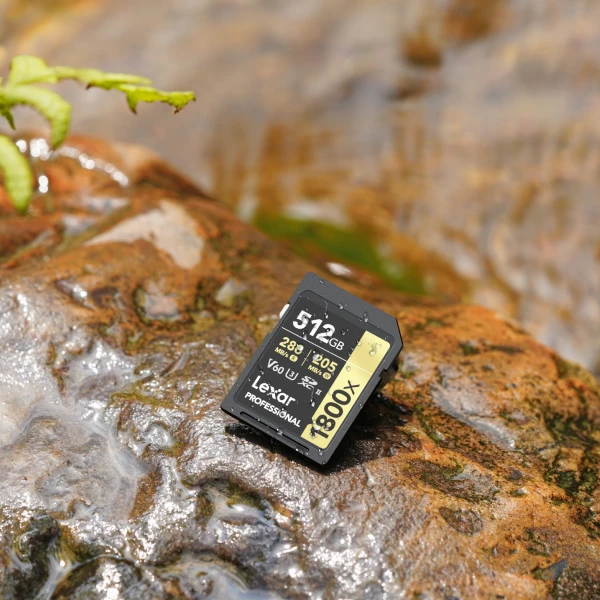
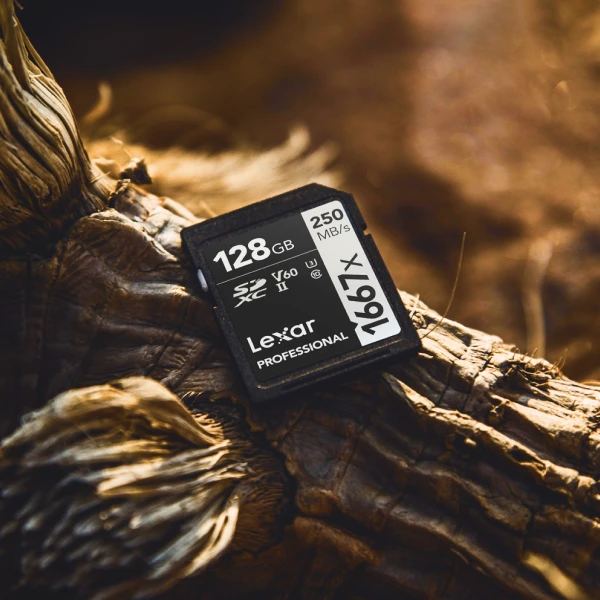
Mistake #10: Buying Counterfeit or Unreliable Memory Cards
Counterfeit and substandard cards plague online marketplaces, and memory card prices vary dramatically. The same specifications might cost $25 from one seller and $8 from another. Lower prices look like deals until the card fails, writes slower than rated, or reports incorrect capacity.
Counterfeit cards use firmware tricks to report false capacities. A 32GB card can be reprogrammed to identify as 256GB. It accepts files until its real capacity is filled, then overwrites previous files or reports errors.
Cheap cards use lower-grade flash memory delivering speeds far below ratings. A card rated V30 might actually write at 15MB to 20MB/s, causing dropped frames.
Authorized retailers maintain supply chain integrity. Cards from official brand stores, major photography retailers, or Amazon sold and shipped by Amazon directly have minimal counterfeit risk. However, third-party marketplace sellers with minimal feedback present higher risk. Prices significantly below market rates suggest counterfeits.
Reputable brands like Lexar® invest in quality control, authentication measures, and warranty support. Lexar® memory cards include security features verifying authenticity, and purchase from authorized Lexar® retailers ensures genuine products backed by manufacturer warranties. The cost difference between reliable cards and counterfeits might be $10 to $30 per card, but that’s a low cost compared to losing photos from an important shoot.
Bonus Tips: Essential Memory Card Care and Maintenance
Regular formatting keeps file systems healthy. Professionals format cards after every shoot once files are backed up. Others format monthly. Use in-camera formatting exclusively. Camera firmware updates occasionally improve memory card compatibility or performance. Check your camera manufacturer’s website quarterly for updates.
Card lifespan depends on write cycles. Consumer-grade cards typically handle tens of thousands of cycles. Professional cards may reach hundreds of thousands. In practical terms, heavily used cards might last 3 to 5 years. Replace cards showing warning signs: Increased write errors, file corruption without obvious cause, slower write speeds, or physical damage.
Error messages deserve attention. “Card Error” or “Card Cannot Be Accessed” means the camera detected a problem. When that happens, power off, remove and reinsert card, power on, and format in-camera. If errors persist, try the card in different cameras or computers to determine if the problem is camera-specific or card-specific.
If multiple devices show errors, copy important files off immediately and retire the card.
Professional-grade cards like the Lexar® Professional series offer the best performance yet still focus on quality and reliability. They include robust error correction algorithms and better environmental resistance. For professional photographers whose livelihood depends on reliability, the premium for professional cards is minor insurance.
Protecting Your Photos Through Better Practices
Memory card failures happen, but most data loss stems from preventable mistakes. Format in-camera after backing up. Match card speed to camera requirements. Power down before card removal. Dedicate cards to specific cameras. Verify capacity compatibility. Swap cards before reaching capacity. Handle cards carefully and store properly. Back up frequently. Buy from authorized retailers.
These practices become habitual through conscious implementation. Start with mistakes most relevant to your shooting style. If you shoot video, prioritize speed class matching and in-camera formatting. If you travel extensively, emphasize backup routines and physical protection. Build habits progressively rather than attempting perfect implementation immediately.
Professional photographers treat memory cards as expendable media protecting irreplaceable content temporarily until it reaches permanent storage. They buy quality cards, handle them carefully, follow best practices religiously, and replace cards at first signs of trouble.
Memory cards from reliable manufacturers like Lexar® provide the foundation: Quality flash memory, accurate speed ratings, proper formatting, authentication security. Building correct handling habits on that foundation creates resilient workflows where card-related problems become rare exceptions rather than regular frustrations.