


Having a fast, efficient video editing SSD workflow isn’t a luxury these days; rather, it’s a necessity for content creators working with high-resolution footage and tight deadlines.
The right storage solution can dramatically improve performance, whether you’re editing 4K footage or producing high-volume media content. In this guide, we’ll discuss why high-speed SSDs are essential for professional video editors, as well as how to choose the best options for your specific workflow. Let’s get started.
Key Takeaways:
- Efficient Workflow: High-speed SSDs are essential for a fast and reliable video editing workflow in today’s high-resolution environment.
- Storage Impact: Your storage setup significantly influences how quickly you can import, edit, and export your media.
- Performance Priorities: Focusing on read/write speeds, ample capacity, and robust endurance can streamline your editing process.
- Real-World Benefits: SSDs eliminate lag in multi-cam and remote editing scenarios, making them indispensable for tight deadlines.
- Technical Edge: Understanding SSD technology—like NVMe, interface options, and caching—helps match the right drive to your editing needs.
- Lexar Advantage: Lexar’s innovative SSD solutions are tailored to boost the performance and reliability of professional video editing workflows.
- Best Practices: Smart habits such as using SSDs as scratch disks, organizing files, and regular backups ensure sustained peak performance.
Why Your Storage Solution Matters When Video Editing

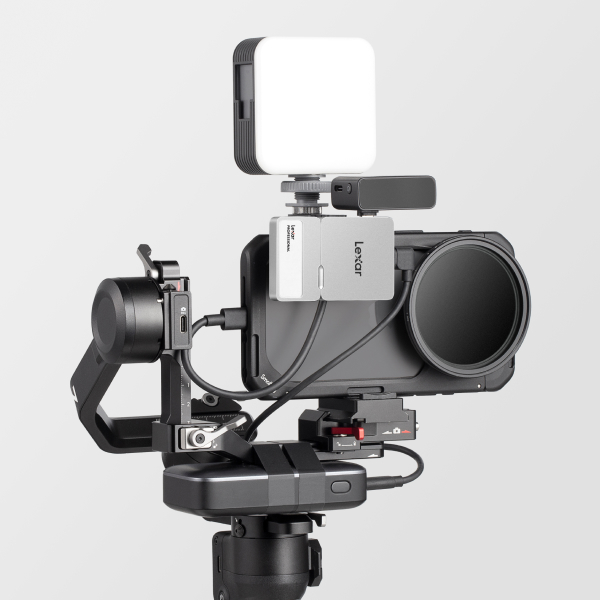
You can think of your storage setup as a behind-the-scenes hero of your editing suite. It dictates various components, including how quickly you can import media or export final projects.
In a modern editing environment, especially one reliant on a streamlined SSD-optimized video editing workflow, every second counts — literally.
Let’s be real: traditional hard drives struggle to keep up with the speeds and demands of today’s video formats. Slow read or write speeds lead to choppy playback and a sluggish workflow that can cause more than just frustration on your end.
SSDs, however, change the game by offering lighting-fast data access and seamless editing like never before. And, with the right SSD, your machine can easily keep up with your always-evolving creative vision.
Key Considerations for an Efficient Video Editing SSD Workflow
Crafting a smooth, reliable video editing SSD workflow starts with understanding the core factors that influence performance. From how quickly your drive can transfer data to how much footage it can store, every facet has an important responsibility in keeping your editing process efficient and stress-free.
Here are some of the key specs to prioritize when looking for your ideal SSD.
Read and Write Speeds
When it comes to real-time playback and seamless effect rendering, high read and write speeds are crucial. SSDs, particularly NVMe models, deliver speeds far beyond classic HDDs. This reduces lag significantly, speeding up everything from scrubbing through clips to exporting huge video files.
For more demanding formats like 4K and RAW, faster speeds mean fewer delays and a much smoother editing experience.
Capacity and File Management
Your storage needs depend heavily on the types of projects you work on and their overall scope, especially how many assets, edits, and versions you’ll accumulate over time. Large-capacity SSDs (1TB or more) allow editors the flexibility to store high-res files locally without juggling multiple drives at once.
Organizing your footage by project or date and using secondary storage for archives helps keep your active workflow clean and fast.
Reliability and Endurance
Video editing isn’t easy on drives. Thus, durability matters. SSDs rated with higher TBW (terabytes written) can handle frequent read/write cycles without wearing out prematurely.
Try looking for models built with professional use in mind. These will be optimized for heavy workloads and maintain consistent performance under pressure — ensuring your videos stay safe and accessible.
Real-World Applications of SSDs in Video Editing Workflows
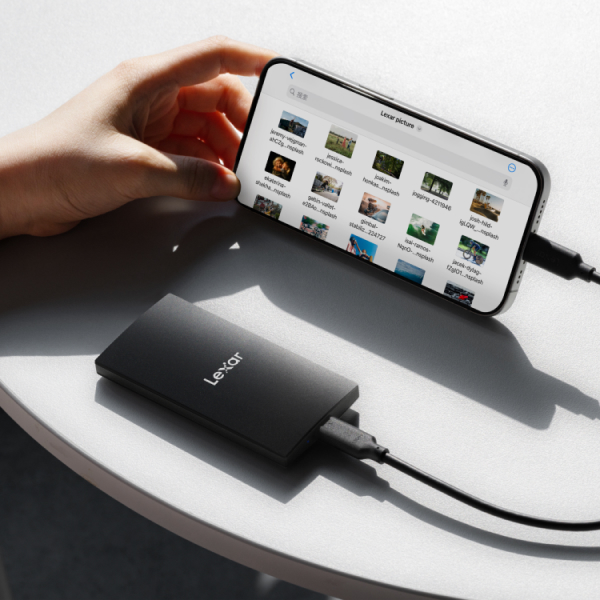
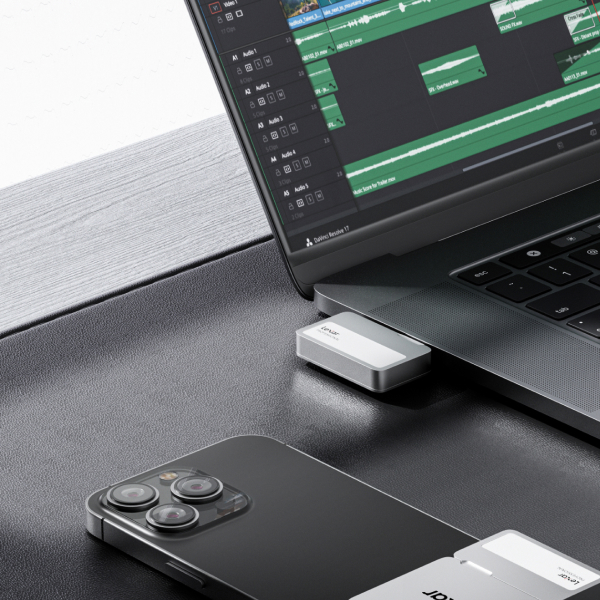
A well-optimized video editing SSD workflow makes a tangible difference in day-to-day editing. Whether you’re working in a studio or editing from the road, high-speed SSDs keep your workflow frustration-free.
Here are a few real-world situations where the right storage setup can be a complete game changer:
- Multi-Cam Editing with High Bitrate Footage: Editing footage from multiple camera angles, especially in 4K or higher, demands fast access speeds. SSDs eliminate the lag when scrubbing through footage, switching angles, or applying real-time effects in your timeline. If you’re looking for options, here’s a helpful guide on the best external SSDs for video editing.
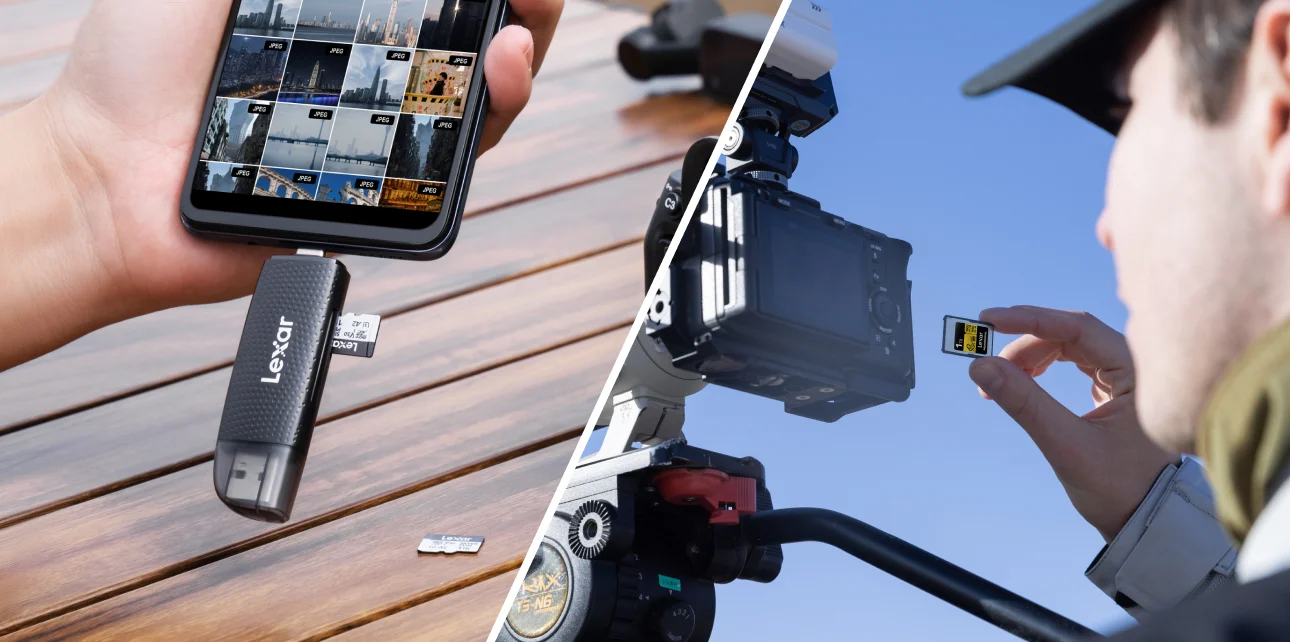
- Remote and Mobile Editing: When you’re working on location or editing while traveling, portable SSDs offer blazing-fast transfers and reliability on the go. Paired with a USB-C or Thunderbolt interface, they let you offload and edit files without slowing down.
- Quick Turnaround Projects: Fast-paced workflows like event recaps or social content creation benefit from instant file transfers and speedy exports. SSDs reduce bottlenecks, so you can meet tight deadlines without sacrificing quality.
- Proxy and Preview Performance: High-speed SSDs ensure smooth playback of proxies and full-res footage alike, making editing more efficient—even when working on lower-powered laptops.
And of course, that’s just the start. For example, if you work in a team environment, SSDs help facilitate quicker file sharing and syncing. This keeps everyone on the same timeline both digitally and in person.
Breaking Down the Tech: SSD Performance Explained
Since not all SSDs are built the same, it’s crucial to understand the technology behind them. This knowledge allows you to make the right equipment decisions, giving your video editing SSD workflow a serious edge.
NVMe SSDs, which connect via PCle lanes, outperform SATA models by offering faster access to large files and smoother multitasking.
Interface matters, too: Thunderbolt and high-gen USB-C connections allow for ultra-quick transfers, especially for on-location workflows. Onboard cache and advanced controllers can also boost sustained performance during the most demanding tasks like batch exports.
Simply put, choosing the right drive means matching this tech to your editing needs and setup.
Exploring Lexar Solutions for a Seamless Video Editing SSD Workflow
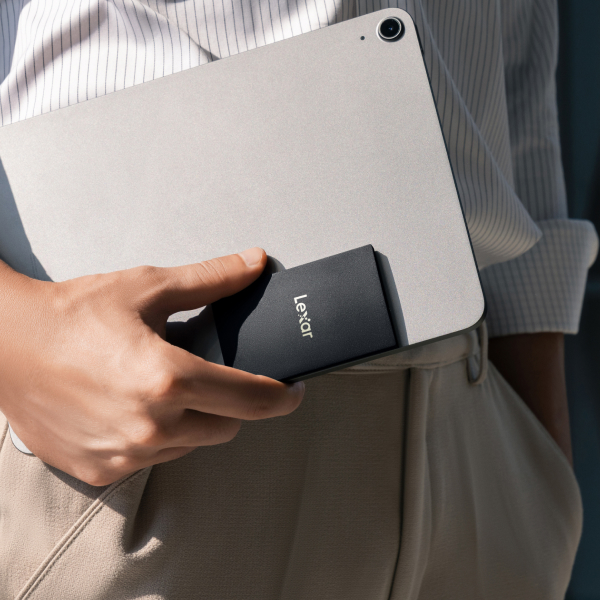

Lexar designs our high-performance SSDs to meet the real demands of professional content creators. It doesn’t matter if you’re editing on a desktop or in the field: these SSDs help you streamline your video editing SSD workflow with cutting-edge speed, durability, and intelligent design.
Let’s break down what Lexar has to offer when it comes to these high-performance storage solutions:
- Lexar NM790 with Heatsink: This high-performance PCIe Gen4x4 NVMe SSD delivers speeds of up to 7,400MB/s read and 6,500MB/s write, perfect for handling large media files and demanding 4K/8K video workflows. Its built-in heatsink keeps temperatures low during intense editing sessions, helping maintain consistent performance without throttling. With low power consumption and broad compatibility, including support for the PlayStation®5, it’s a versatile option for both professional creators and hybrid pro/gaming setups.
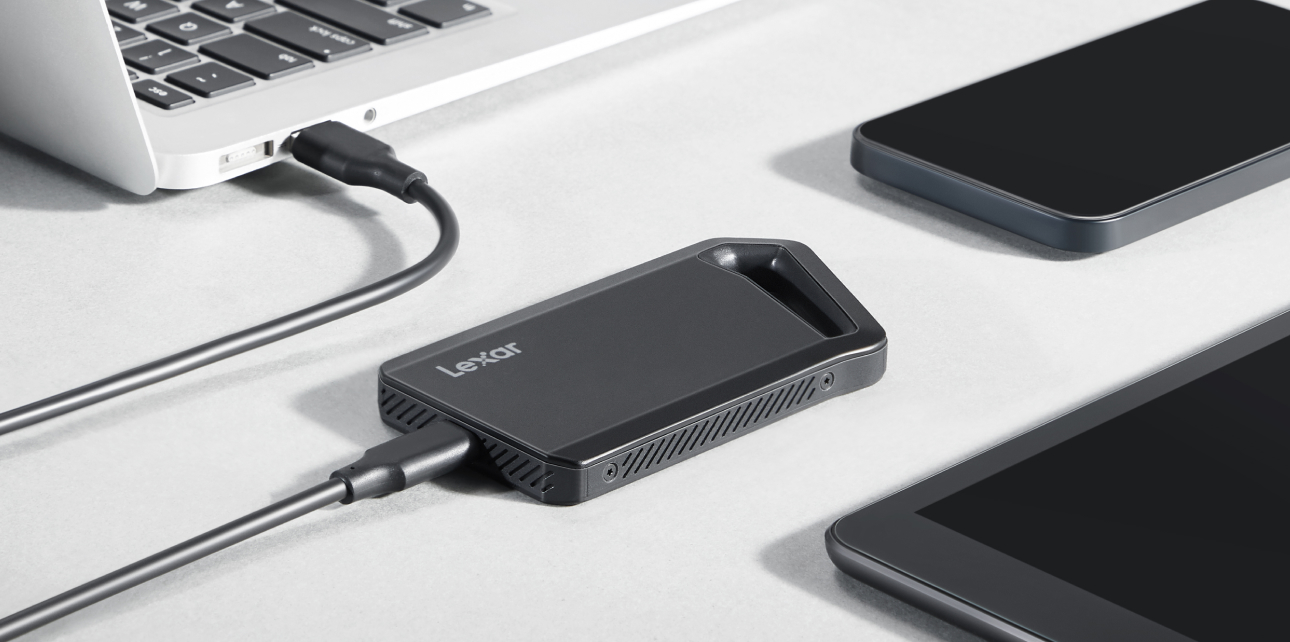
- Lexar Professional Workflow Portable SSD: Designed specifically for content creators, this sleek high-speed drive delivers up to 2,000MB/s read and write speeds, ideal for editing and transferring large files quickly. It is fully compatible with the Lexar Workflow Go dock, making it easy to scale and streamline your setup. Whether you’re working in the studio or on location, this modular SSD helps create a more efficient and flexible video editing environment.
- Lexar Professional Go Portable SSD: This system is ultra-lightweight (only 13g) and compact, but it offers up to 2TB of storage. It also directly records ProRes 4K 60 FPS footage from supported devices, and offers speeds up to 1,050MB/s read, 1,000MB/s write. Plus, it comes bundled with a hub that allows users to connect additional peripherals, making it ideal for flexible, streamlined mobile setups.
Best Practices for Managing Your Video Editing SSD Workflow
Before we let you go find your perfect Lexar SSD, let’s cover five best practices for your video editing SSD workflow. These guidelines will help ensure your projects run smoothly, your data is protected, and the lifespan of your drive is extended.
- Use SSDs as Scratch Disks, Not Sole Storage: Dedicate your SSDs to active projects—especially for preview renders, cache, and temporary files. Once a project is complete, transfer it to long-term storage.
- Organize Projects with a Clear Folder Structure: Build a consistent file naming and folder system that separates media, exports, and backups. This minimizes confusion and makes migrating or syncing across drives much easier.
- Enable Scratch Disk Optimization in Editing Software: In Adobe Premiere Pro, DaVinci Resolve, or Final Cut Pro, assign your SSD as the scratch or cache disk. This ensures faster rendering, playback, and smoother edits—especially with effects-heavy timelines.
- Don’t Fill Your SSD to Capacity: Keeping 10–20% of your SSD free allows for better performance and helps prevent slowdowns caused by limited write space. High-speed SSDs still need room to breathe.
- Regularly Monitor Drive Health: Use your system’s utilities or third-party apps to check for firmware updates, monitor wear levels (especially for NVMe drives), and verify that your SSD is operating optimally.
Following these practices ensures ultimate performance and reliability for your video editing journey.
Power Your Creative Vision with Lexar SSDs
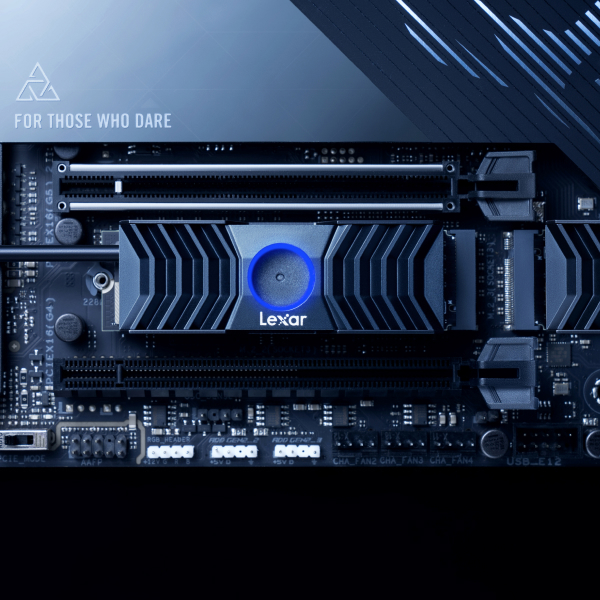

In this day and age, having a reliable video editing SSD workflow is essential for keeping up with today’s high-resolution formats and demanding creative timelines. That’s why Lexar expertly engineers SSDs that are built for creators who prioritize speed, durability, and performance.
Whether you’re editing from a high-end desktop or a mobile setup, Lexar has a solution that will fit perfectly into your workflow. Explore Lexar’s full range of internal SSDs and portable SSDs and start editing at the speed of your creativity.
Frequently Asked Questions About SSDs for Video Editing Workflows
What type of SSD is best for video editing-internal or portable?
Both have their place, depending on your workflow. Internal NVMe SSDs are ideal for maximum performance and desktop-based editing. Portable SSDs, like Lexar’s Workflow or Go series, are great for on-location work, mobile setups, or transferring large files between systems.
How much storage do I need for editing 4K or 8K video?
For 4K editing, at least 1TB is recommended to avoid frequent offloading. For 8K and longer or multi-cam projects, 2TB or more ensures smoother playback, faster exports, and fewer storage bottlenecks. Also consider project duration, proxy usage, and whether you edit in RAW or ProRes formats.
Why are NVMe SSDs better than SATA or traditional HDDs for video editing?
NVMe SSDs use PCIe lanes for ultra-fast data access, allowing real-time scrubbing, quicker renders, and seamless multi-cam workflows. SATA SSDs are better than HDDs but can bottleneck high-bitrate footage. HDDs typically can’t keep up with modern editing speeds at all.
Can I edit video directly from a portable SSD?
Yes-high-performance portable SSDs like the Lexar Professional Workflow or Go series support fast read/write speeds and can even record ProRes footage directly from supported devices. They’re ideal for editing on the go, syncing between devices, or using as scratch drives.
How do I maintain long-term SSD performance?
Use SSDs primarily for active projects, keep 10-20% of space free, regularly monitor drive health, and set up your editing software to use the SSD as a scratch/cache disk. Offload completed projects to archival storage to reduce wear and free up space.