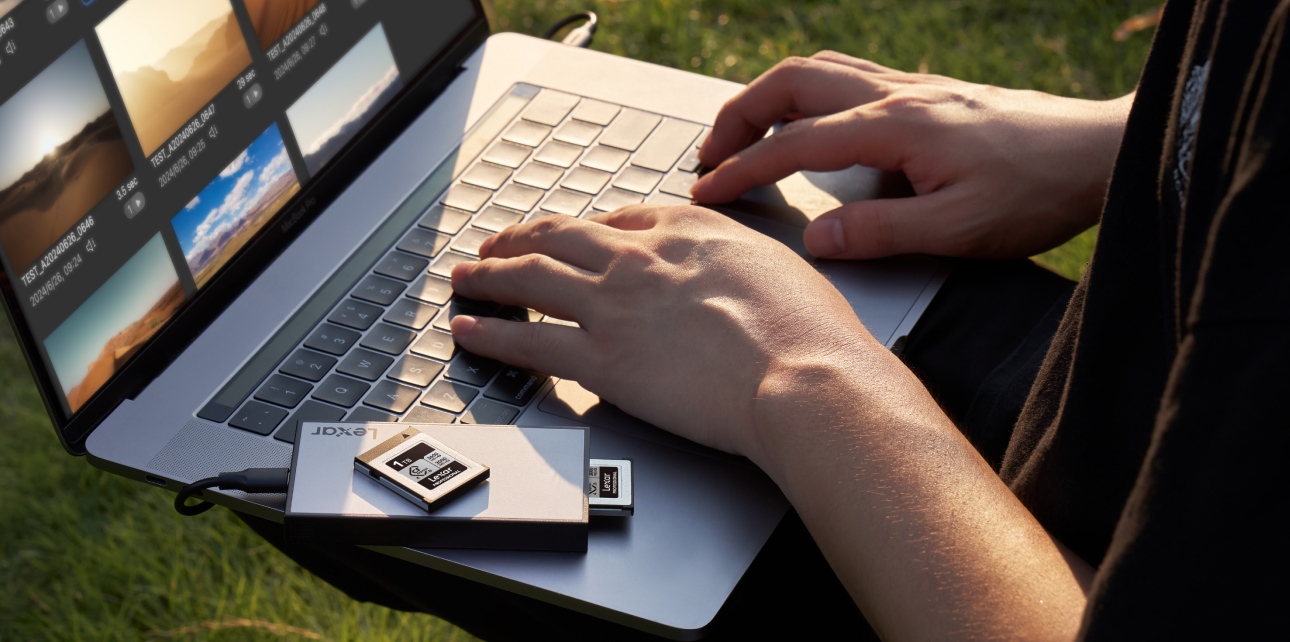



Think of a file system as the organizational structure your camera and computer use to write, read, and track files on a card. Without one, a storage device is just raw space with no order. The file system is what lets your camera know where a video clip starts and ends, how large a photo file is, and where to write the next burst of RAW frames.
Here is a breakdown of each format you will encounter:
- File Allocation Table (FAT): The original format, dating back decades. You will rarely see this on modern cards, but some very old devices still reference it. It has a maximum file size of just 2GB and a maximum volume size of 4GB.
- FAT32: A significant upgrade over FAT. FAT32 supports volumes up to 2TB. The critical limitation is its 4GB maximum individual file size.
- Extended File Allocation Table (exFAT): The modern standard built for flash memory and large files. No practical file size limit. No meaningful volume size cap. Wide compatibility across cameras, computers, and operating systems.
The jump from FAT32 to exFAT was necessary. As cameras started recording higher-resolution video and RAW burst shooting became standard, the 4GB file size ceiling became a real problem. A single 10-minute clip in 4K at a decent bitrate can sit well above 10GB. FAT32 cannot hold that in one file, which forces some cameras to split recordings automatically – or fail entirely.
According to the SD Association’s official card specification, exFAT is the standard file system for all SDXC cards at 64GB and above.
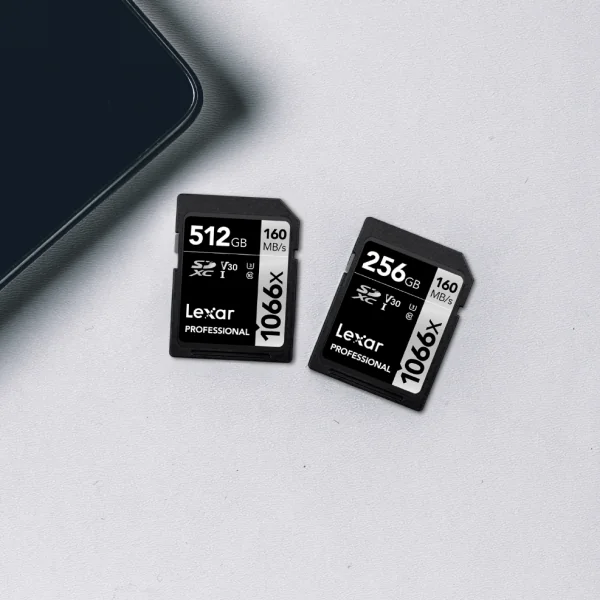
Which Format Does Your Camera Need? (Under 32GB vs. 64GB and Above)
| Feature | FAT32 | exFAT |
|---|---|---|
| Max File Size | 4GB | No practical limit |
| Max Volume Size | 2TB | 128PB |
| Best Card Size | 32GB and under | 64GB and above |
| SD Card Type | SDHC | SDXC |
| 4K Video Recording | File size limit breaks clips | No interruption |
| Camera Compatibility | Older and current cameras | All modern cameras |
| Mac / Windows Support | Both | Both |
Card size is the clearest signal when choosing how to format a memory card for camera use. Cards at 32GB and below are formatted FAT32 by default. Cards at 64GB and above are formatted exFAT by default.
What happens when the format and card size do not match? You will usually hit one of three problems:
- Camera rejects the card: Some cameras refuse to recognize a card formatted in the wrong file system and prompt you to reformat.
- Recording stops mid-clip: If a FAT32-formatted card hits the 4GB file size limit during a long video, the recording can cut off without warning.
- Corrupted files: Mismatched formats can lead to incomplete writes and corrupted footage.
Video shooters working with continuous recording modes face the sharpest risk here. If your camera supports 4K at high bitrates, 6K, or Cinema RAW formats, exFAT is not optional. It is the only format that can handle what those recording modes produce.
Shooting stills only? FAT32 on a 32GB card works fine. Individual RAW files rarely exceed 50MB, so the 4GB limit is not a practical concern for photos alone.
In-Camera Format vs. Computer Format for SD Cards – Which Is Right?
Format in-camera whenever possible. That is the recommendation, and it holds across virtually every camera type.
When your camera formats a card, it also writes camera-specific data structures, reserved partition space, and configuration information the camera uses to communicate with the card efficiently. Some cameras create dedicated folders for photo and video storage, reserve space for firmware tasks, or set up write-cycle patterns that match their recording behavior.
When you format on a computer instead, the operating system writes a generic file system with no knowledge of what the camera expects. In most cases this works fine. But edge cases exist, particularly with video-focused cameras that expect specific folder structures or partition layouts.
That said, there are legitimate reasons to format a memory card on a computer:
- Changing the file system type: If you have a 128GB card mistakenly formatted as FAT32, most cameras cannot reformat it as exFAT. A computer can.
- Card recovery situations: After using a recovery tool to retrieve files, a computer-based full format is sometimes the cleanest path before returning a card to service.
- Compatibility testing: When troubleshooting a card issue, formatting on a computer gives you a known baseline to work from.
Always choose a full format, not a quick format. Quick format erases only the file system index while leaving the underlying data intact. Full format writes zeros across the card, checks for bad sectors, and gives you a genuinely clean slate. It takes longer. It is worth it.
For more on protecting your files between shoots, see our guide on common memory card mistakes that ruin shoots.
How Often to Format Your Memory Card (And Why “Delete All” Is Not a Substitute)
This is one of the most misunderstood habits in photography and videography. Deleting files through your camera menu feels like housekeeping. It is not the same as formatting.
When you delete files in-camera, the camera marks that space as available but does not erase or rewrite anything. Over time, the card’s file system accumulates fragmentation through thousands of small writes, deletes, and rewrites. The index of what is written becomes increasingly messy. This is one of the leading contributors to write errors, slower transfer speeds, and occasional card read failures.
The most practical approach: format after every shoot, once you have confirmed your files are safely backed up.
Always format your card in these situations, no exceptions:
- Brand new card from the box: Manufacturer formatting is generic. Format in your camera before first use.
- Card used in a different camera: Different cameras leave behind conflicting file structures. Format before switching devices.
- After recovering files from a corrupted card: Recovery tools leave the card in an uncertain state. Format clean before using again.
- After any unexplained error or recording failure: If your camera threw an error mid-shoot, format before trusting the card again.
One point that cannot be overstated: formatting is permanent. It will erase everything on the card. Back up your files first. Every single time.
Pre-Format Checklist
- Files backed up to a second location
- Card size confirmed (32GB or under = FAT32 / 64GB or above = exFAT)
- Formatting in-camera, not via computer (unless changing file system)
- Selecting “Full Format” or “Low Level Format” when option is available
- Camera battery charged above 50% before starting
How to Format a Memory Card: Step-by-Step for Major Camera Types
The process varies slightly by camera brand and model, but the general path is consistent. Check your camera’s manual for the exact menu location if you cannot find it.
DSLR and Mirrorless Cameras (General Path)
- Insert the memory card you want to format.
- Turn the camera on.
- Open the main menu (usually a dedicated Menu button).
- Navigate to the Setup or Tools menu – often represented by a wrench or gear icon.
- Look for “Format Memory Card,” “Format Card,” or “Card Format.”
- Select the card slot if your camera has dual slots.
- Confirm the format. Choose “Low Level Format” or “Full Format” if offered.
- Wait for the process to complete before removing the card.
Action Cameras
- Insert the card and power on the camera.
- Access Settings via the touchscreen or side button.
- Navigate to Preferences or General Settings.
- Select “Format SD Card.” Confirm in your manual which option performs a true format – some action cameras label it differently.
- Confirm and wait for completion.
Formatting on a Windows Computer (When Necessary)
- Insert the card using a quality card reader.
- Open File Explorer and right-click the card drive.
- Select “Format.”
- Choose the file system: exFAT for 64GB+, FAT32 for 32GB and under.
- Uncheck “Quick Format” for a full format.
- Click Start and confirm.
Formatting on a Mac (When Necessary)
- Insert the card using a card reader.
- Open Disk Utility (Applications > Utilities).
- Select the card in the left sidebar.
- Click Erase.
- Name the card and select the format: ExFAT for 64GB+, MS-DOS (FAT) for 32GB and under.
- Choose Security Options for a more thorough erase if needed.
- Click Erase to confirm.
When using a Lexar® Professional USB-C Dual-Slot Card Reader or similar multi-slot reader, make sure only one card is active during formatting to avoid accidental cross-slot errors. For everything you need to know about choosing the right card speed for your workflow, see The Essential Guide to Memory Card Speeds.
Frequently Asked Questions About Memory Card Formatting
FAT32 or exFAT for SD card in a camera – which should I use?
Use FAT32 for cards 32GB and under. Use exFAT for cards 64GB and above. This follows the SD Association’s official specification. SDHC cards (up to 32GB) use FAT32. SDXC cards (64GB+) use exFAT. If your camera prompts you to reformat a card, it is almost always because the current file system does not match what the camera expects for that card’s size.
Can I format a 128GB card as FAT32?
Technically yes, with a third-party tool, but you should not. Forcing FAT32 onto a 128GB card means inheriting the 4GB file size limit on a card built for high-capacity work. Any video recording longer than a few minutes at moderate quality will be split or fail. Format 128GB cards as exFAT.
Does formatting a memory card erase files permanently?
A standard format removes the file system index, making files appear gone. The underlying data may still exist until overwritten by new files. Specialized recovery software can sometimes retrieve files after a standard format if nothing new has been written.
A full format writes over data sectors directly, significantly reducing or eliminating recoverability. If you need to permanently wipe a card for resale or privacy reasons, perform a full format. Always back up before formatting; once you start shooting new footage on a formatted card, previously deleted files are gone.
What is the best format for SD cards used for 4K video?
exFAT, without question. The 4GB ceiling on FAT32 is a direct conflict with 4K recording. A 10-minute clip at 100Mbps reaches roughly 7.5GB. On a FAT32 card, that recording either stops at the file size limit or splits automatically. Neither is acceptable mid-shoot. Always use exFAT for 4K or high-bitrate video.
Should I format a memory card in-camera or on my computer?
In-camera whenever possible. The camera writes its own folder structure and configuration data during the format, which keeps the card in the exact state the camera expects. Use a computer only when you need to change the file system type, or when recovering from a card error. After computer formatting, do a second format in-camera before shooting.
Why does my camera say “Card Not Compatible” or “This Card Cannot Be Used”?
This usually points to one of three issues:
- File system mismatch: The card is formatted in a file system the camera does not support. Use the camera’s built-in format function to fix it.
- Speed class mismatch: The card’s speed rating is below what the camera requires for 4K or burst shooting. Check your camera’s recommended speed class.
- Card damage or failure: If reformatting does not resolve the error, the card itself may have failed. Try the card in another device to confirm.
Build the Format Habit That Protects Every Shoot
Getting the format right is not a one-time fix – it is an ongoing habit. Format in-camera. Match the file system to your card size. Format after every shoot once your files are backed up. Stop relying on “delete all” as a substitute.
These four practices prevent a significant portion of the card errors, failed recordings, and lost files that trip up even experienced shooters. Your memory card is the last line of defense between a perfect shoot and a blank drive.
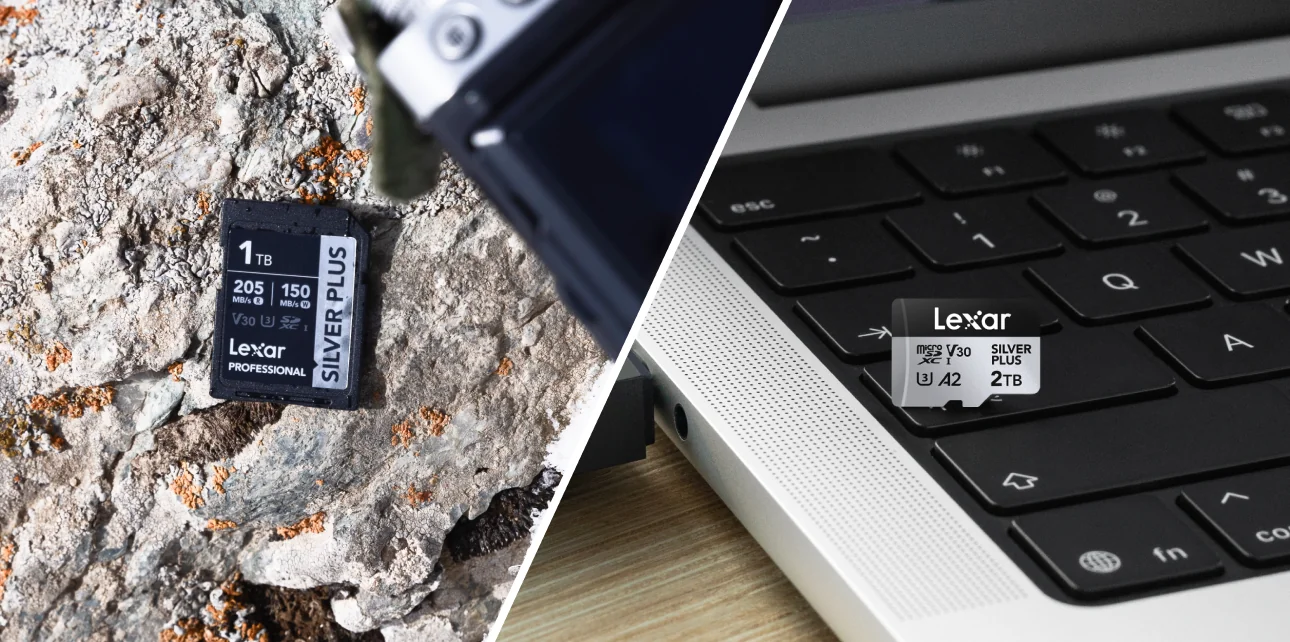
The Lexar® Professional SILVER PLUS SDXC™ UHS-I Card and the Lexar® SILVER Series microSDXC™ UHS-I Card ship formatted and ready for use – but performing an in-camera format before your first shoot still aligns the card to your specific camera’s expectations before you trust it with anything important.
Better yet, every Lexar® card comes with the Lexar Recovery Tool, a free utility designed to restore lost or deleted files from storage devices such as memory cards, USB drives, and SSDs.
The Lexar Recovery Tool is built for ease of use, with a simple process: select the device, run a scan, preview recoverable files, and restore them. It supports a wide range of file formats, including RAW image types from major camera brands, and works on both macOS and Windows systems.
It is particularly useful in cases of accidental deletion, formatting, or file corruption, though recovery success depends on whether the original data has been overwritten or the device has physical damage.
Format correctly. Format regularly. Never skip the backup. Ready to choose the right card for your setup? Explore the Lexar memory card lineup to find the right speed, capacity, and format for your camera and workflow.
Find the Right Card for Your Camera
Lexar memory cards built for photographers and videographers — every speed class, every format, every capacity.
Shop Memory Cards