


A file system organizes how your operating system stores and retrieves data on storage devices. It creates the structure that lets your computer quickly locate specific files among thousands stored on a drive. Different file systems use varying methods for indexing, which affects everything from performance to compatibility across platforms.
When you format a drive, you’re establishing this organizational framework. The file system determines the maximum file size your drive can handle, how it manages available space, what metadata it tracks, and which operating systems can access your files.
Microsoft developed three primary file systems for Windows: File Allocation Table 32 (FAT32), Extended File Allocation Table (exFAT), and New Technology File System (NTFS). FAT32 remains common for smaller devices but limits individual files to 4GB. NTFS provides advanced features for Windows systems but faces compatibility restrictions on Mac and other platforms. exFAT bridges this gap, offering large file support with broader device compatibility.
The exFAT vs NTFS decision becomes particularly important for external drives that move between different computers and operating systems. An NTFS-formatted drive works perfectly on Windows but becomes read-only on Mac without additional software. An exFAT-formatted drive provides native read-write access on both platforms, though it lacks some of NTFS’s data protection features.
exFAT Technical Overview and Use Cases
Microsoft introduced exFAT in 2006 to replace FAT32 for flash storage devices. The format supports individual files larger than 4GB and partition sizes exceeding 16TB, removing the practical constraints that made FAT32 obsolete.
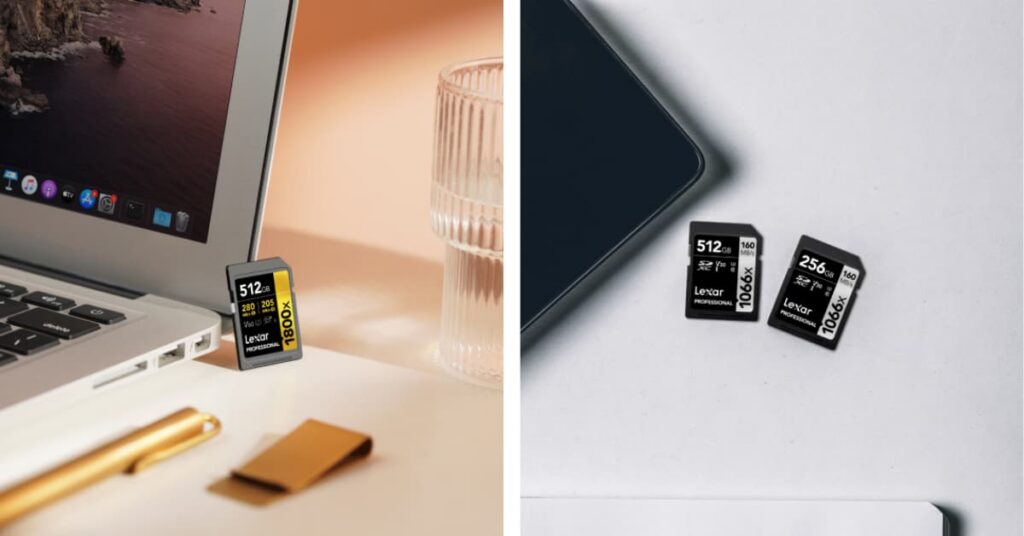
exFAT achieves broad compatibility through its lightweight design. The format omits complex features like journaling and file permissions, allowing native support in Windows, macOS, Linux, and many consumer electronics including cameras, game consoles, and media players. The SD Association adopted exFAT as the standard file system for SDXC cards larger than 32GB.
Performance characteristics make exFAT well-suited for external drives connected via USB. Testing shows exFAT often delivers faster read and write speeds than NTFS when transferring large files to external devices. The format particularly excels with sequential read and write operations common in video recording, game installations, and large file transfers.
The format’s limitations become relevant in specific scenarios. exFAT lacks journaling, which means the file system cannot automatically recover from corruption if power loss occurs during write operations or if the drive disconnects improperly. The absence of file-level permissions and encryption makes exFAT inappropriate when security features matter.
Optimal use cases for exFAT include:
- Cross-platform file transfer between Windows and Mac computers without third-party software
- External SSDs and hard drives used with multiple operating systems
- USB flash drives for portable storage across different devices
- SD cards and memory cards for cameras and mobile devices
- Gaming storage for external game libraries on PlayStation 5, Xbox Series X/S, or gaming PCs
- Video production when recording directly to external drives from cameras or mobile devices
- Media storage for large video files accessed from smart TVs or media players
The format works best when you prioritize compatibility and performance over advanced features. If your workflow involves moving files between Windows and Mac regularly, exFAT eliminates the friction of format incompatibility.
NTFS Technical Overview and Use Cases
NTFS debuted with Windows NT in 1993 and has evolved into the standard file system for Windows internal drives. Microsoft designed NTFS to leverage modern computing capabilities, implementing features like journaling, built-in encryption, and file-level security that benefit from increased processing power and system resources.
Journaling represents one of NTFS’s key advantages over simpler file systems. The format maintains a log of changes before writing them to the main file system. If power loss or system failure interrupts a write operation, NTFS uses this journal to recover the file system to a consistent state. This journaling provides significantly better data protection against corruption compared to exFAT.
File-level security in NTFS allows setting specific permissions for individual files and folders. Windows administrators can control which users can read, write, modify, or execute specific files. This granular permission system makes NTFS appropriate for multi-user environments and situations requiring controlled access. The format also supports built-in encryption through Windows’ Encrypting File System (EFS).
NTFS handles file compression natively, allowing Windows to compress individual files or entire folders to save space. The compression remains transparent to users – compressed files appear and function normally, with Windows handling compression and decompression automatically.
The file system demonstrates excellent efficiency for internal Windows drives. NTFS processes smaller files faster than exFAT or FAT32, and file operations complete more quickly while consuming fewer system resources. This efficiency stems from NTFS’s sophisticated indexing and caching mechanisms optimized for the Windows environment.
Compatibility limitations create challenges when using NTFS drives across platforms. macOS can read NTFS drives natively but cannot write to them without third-party software. This read-only access on Mac stems from licensing considerations and Apple’s focus on supporting their own file systems (APFS and HFS+) plus exFAT for cross-platform needs. Linux systems support NTFS through the NTFS-3G driver, though support quality varies across distributions.
Performance characteristics differ between internal and external use. As an internal drive file system on Windows, NTFS delivers superior performance compared to exFAT. However, when used on external drives connected via USB, the situation reverses – exFAT often achieves faster read and write speeds for large files.
NTFS works best in these scenarios:
- Windows internal drives where advanced features like encryption and permissions provide value
- External drives used exclusively with Windows PCs where data integrity matters more than cross-platform compatibility
- Backup and archival purposes on Windows systems where journaling protects against corruption
- Multi-user Windows environments requiring file-level security and access control
- Boot drives and system partitions for Windows installations
exFAT vs NTFS Direct Comparison: Performance, Compatibility, and Features
Transfer speed comparisons between exFAT and NTFS depend heavily on usage context. For internal Windows drives, NTFS consistently outperforms exFAT across most operations. External drives connected via USB show different performance patterns. exFAT often achieves faster sequential read and write speeds when transferring large files to external storage.
Gaming scenarios illustrate these performance differences. External game libraries benefit from exFAT’s faster large file read performance, resulting in better load times when running games from portable SSDs.
Cross-platform compatibility creates the most significant practical distinction between formats:
exFAT Compatibility:
- Windows: Full native read-write support from Windows 7 onward
- macOS: Full native read-write support from Mac OS X 10.6.5 (Snow Leopard) onward
- Linux: Support varies by distribution, generally requires exfat-fuse packages
- Gaming consoles: PlayStation 5, Xbox Series X/S, and Nintendo Switch support exFAT
- Cameras and media devices: Wide support, especially for SD cards and professional video equipment
NTFS Compatibility:
- Windows: Full native read-write support, default file system
- macOS: Read-only access natively – write operations require third-party software like Paragon NTFS for Mac, Tuxera NTFS, or iBoysoft NTFS for Mac
- Linux: Read-write support through NTFS-3G driver, quality varies
- Gaming consoles: Limited or no support on most consumer devices
- Cameras and media devices: Generally not supported
File size and partition limits differ between formats. NTFS supports individual files up to 16 exabytes (256 terabytes practical limit) and partitions up to 256 terabytes. exFAT supports files up to 16 exabytes and partitions up to 128 petabytes. For practical purposes, both formats handle any file size or partition size you’ll encounter with current storage devices.
Security features distinguish NTFS from exFAT’s simpler design. NTFS provides file-level permissions, built-in encryption through EFS, and file compression. exFAT omits all these features, operating as a straightforward storage format without access controls or encryption capabilities.
Data protection mechanisms represent another key difference. NTFS journaling records file system changes before applying them, enabling recovery if corruption occurs. exFAT lacks journaling entirely, making it more vulnerable to corruption from power failures or improper drive removal.
Mac Compatibility Considerations
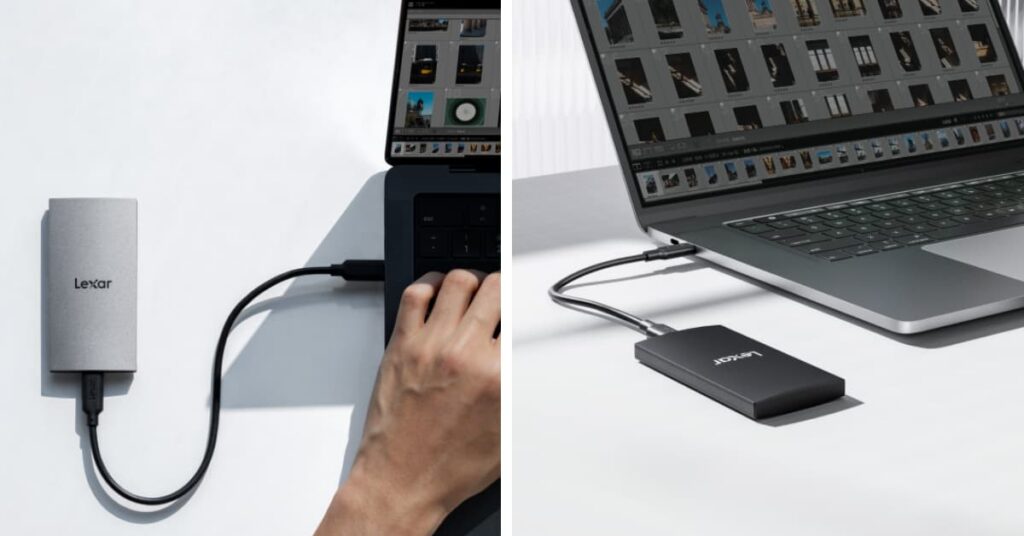
For Mac users who regularly work with external drives across Windows and macOS, exFAT eliminates these complications entirely. Native read-write support on both platforms means external drives formatted as exFAT work immediately without installing additional software.
When formatting drives as exFAT using macOS Disk Utility, always use the GUID Partition Map scheme. Some Windows computers may not properly recognize exFAT drives formatted with other partition schemes.
Formatting External Drives: Step-by-Step Instructions
Formatting drives erases all existing data, so back up any important files before proceeding.
Formatting on Windows 10/11:
Open File Explorer and select “This PC” from the left sidebar. Right-click the drive you want to format and select “Format” from the context menu.
Under “File system,” select either “exFAT” or “NTFS” based on your compatibility needs. The “Allocation unit size” can remain at the default setting for most uses. Enter a volume label to identify your drive.
Check “Quick Format” to speed up the process unless you suspect drive problems requiring a full format. Click “Start” to begin formatting. Windows displays a warning that formatting will erase all data. Confirm to proceed.
Formatting on macOS:
Open Finder and navigate to Applications > Utilities > Disk Utility. Select the main drive entry (at the top level) rather than individual volumes beneath it.
Click the “Erase” button in the Disk Utility toolbar. Enter a name for your drive. Under “Format,” select “ExFAT” for cross-platform compatibility. NTFS does not appear as a format option in macOS Disk Utility because macOS lacks native NTFS write support.
Under “Scheme,” select “GUID Partition Map” for compatibility with both Mac and Windows systems. Click “Erase” to begin formatting.
Formatting Large Drives (2TB+):
Drives larger than 2TB should use GUID Partition Table (GPT) rather than MBR (Master Boot Record) partition schemes. Windows automatically selects the appropriate partition scheme during formatting. On Mac, GUID Partition Map provides GPT functionality. MBR limits partition sizes to 2TB, while GPT supports much larger capacities.
Special Considerations for Lexar Portable SSDs:
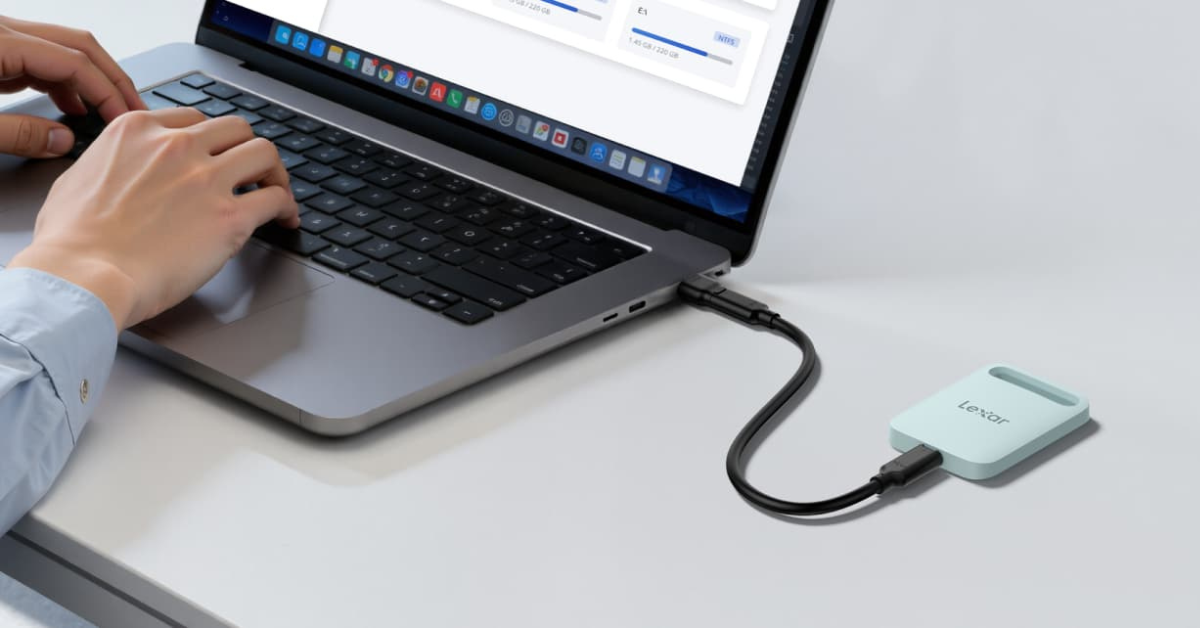
Lexar® portable SSDs like the ES5 Magnetic Portable SSD typically ship formatted as exFAT, providing immediate cross-platform compatibility. For drives used exclusively with Windows where data integrity matters, NTFS provides better protection through journaling. For drives moving between Mac and Windows, maintain the exFAT format to preserve seamless compatibility.
Best Practices and Decision Framework
Selecting between exFAT and NTFS starts with identifying your primary use case and the platforms involved.
Choose exFAT when:
- You transfer files between Windows and Mac computers regularly
- The drive connects to gaming consoles or media devices
- Cross-platform compatibility matters more than advanced features
- You need fast read-write speeds for large files on external storage
- The drive serves as portable storage moving between different computers
- You want to avoid installing third-party software on Mac systems
- The drive will store video files, games, or other large media
Choose NTFS when:
- The drive only connects to Windows computers
- Data integrity and protection against corruption matter more than compatibility
- You need file-level security and permission controls
- Built-in encryption provides value for sensitive data
- The drive serves backup or archival purposes on Windows
- You’re setting up an internal Windows drive
- Network-attached storage operates primarily in Windows environments
Regular maintenance practices extend drive lifespan regardless of format. Always use the “Safely Remove Hardware” function (Windows) or “Eject” command (Mac) before disconnecting external drives. This ensures all write operations complete and file system metadata updates properly. Abrupt disconnections risk corruption, particularly with exFAT’s lack of journaling protection.
Multiple external drives in your workflow might benefit from different formats based on specific uses. A Lexar® portable SSD for daily file transfers between platforms works best as exFAT. A backup drive that only connects to Windows systems gains protection from NTFS journaling. Evaluate each drive’s role individually rather than applying a single format across all external storage.
Troubleshooting Common Format Issues
Drive formatting failures occasionally occur due to existing partitions, drive errors, or operating system restrictions. If Windows refuses to format a drive, check Disk Management (accessible through right-clicking the Start button) rather than File Explorer. Disk Management provides more detailed control and can remove problematic partitions that prevent formatting.
Mac users encountering “POSIX error” or similar messages during formatting should verify they selected the main drive rather than a partition. Disk Utility’s sidebar shows a hierarchy – select the top-level drive entry for complete reformatting. If issues persist, run First Aid in Disk Utility to check for and repair drive errors before attempting formatting again.
Cross-platform recognition problems sometimes occur when exFAT drives formatted on one operating system don’t mount properly on another. This typically happens when Mac formats drives using partition schemes Windows doesn’t recognize. Reformatting using GUID Partition Map on Mac or GPT on Windows resolves most compatibility issues.
Write-protected drives that refuse formatting usually have physical write-protect switches or firmware-level protection. Check the drive itself for small switches that enable or disable write protection.
Conclusion
The decision between exFAT and NTFS ultimately depends on your specific workflow requirements and platform compatibility needs. exFAT serves as the practical choice for external drives moving between Windows and Mac systems, offering native support without additional software while delivering strong performance for large file transfers. NTFS provides superior data protection and advanced features for Windows-only environments where journaling, encryption, and file permissions deliver value.
For most users managing Lexar® portable SSDs and external drives across multiple computers, exFAT removes compatibility friction while maintaining excellent performance. The format’s broad device support – including gaming consoles, cameras, and media players – extends its utility beyond computer-to-computer transfers.
Windows-centric workflows benefit from NTFS’s robustness, particularly for backup drives, archival storage, or situations where multiple users share a system. The journaling protection reduces corruption risk, and file-level security enables proper access control in business or shared environments.
No single format works optimally for every situation. Evaluate each external drive’s role in your workflow individually. Consider the platforms involved, whether security features matter, how important data protection is versus cross-platform convenience, and whether you need advanced functionality or just reliable file storage.
Remember that formatting erases data, so maintain backups before changing file systems. Once formatted correctly for your needs, external drives provide years of reliable service regardless of whether you choose exFAT’s compatibility or NTFS’s advanced features.